Main Menu > Edit Menu > Settings
Settings - System 1
The System 1 window contains the following fields and options:
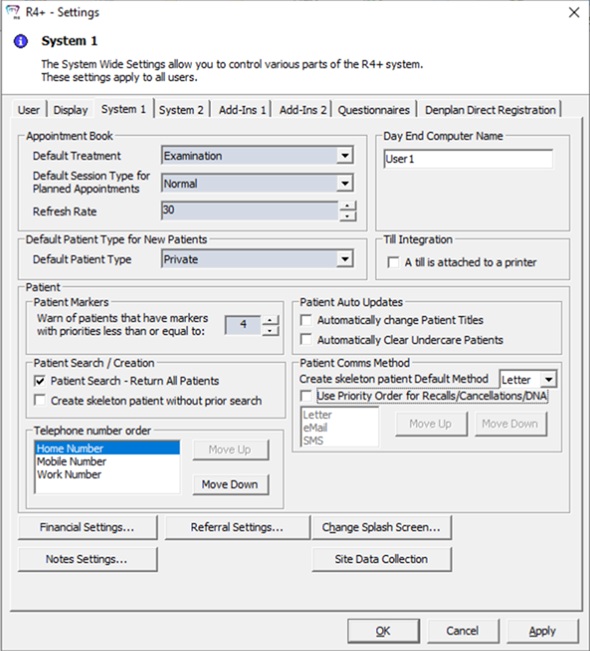
Appointment Book
-
Default Treatment — Select the default treatment from the drop-down list.
-
Default Session Type for Planned Appointments — Select the default type of appointment from the drop-down list.
-
Refresh Rate — Click the up and down arrows to set the refresh rate.
Day End Computer Name — Enter the name of the computer that performs end-of-day procedures.
-
Multi Clinic Setup — Opens the Day End Procedure window in which you can set the day end procedures to run at a single location or multiple locations.
Default Patient Type for New Patients
-
Default Patient Type — Select the default type of patient from the drop-down list.
Till Integration — Select A till is attached to a printer if your printer has a till attached.
Patient
-
Patient Markers — Set the number of patient marker priorities that will trigger a warning.
-
Patient Auto Updates
-
Automatically change Patient Titles — Select this option if you want patient titles to change automatically.
-
Automatically Clear Undercare Patients — Select this option if you want to add the required information for a new patient without searching the patient list.
-
Patient Search / Creation
-
Patient Search - Return All Patients — Select this option if you want all patients to be included in a search.
-
Create skeleton patient without prior search — Select this option if you want to add the required information for a new patient without searching the patient list.
-
Patient Comms Method
-
Create skeleton patient Default Method — Select Letter, eMail, or SMS as the default communication method for a new patient.
Note: eMail and SMS can only be used if these methods have been configured. When saving changes in the patient record, the user is prompted if the default method is not available. -
Use Priority Order for Recalls/Cancellations/DNA — Select this option if you want to set a communication method priority order for recalls, cancellations, or Did Not Attends. Use the Move Up and Move Down buttons to rearrange the methods.
Note:
-- The system first attempts to use the patient's preferred method as set in their Patient Record, no matter where this method lies in the priority order. If the patient's preferred method fails, the system attempts the next method in the priority list.
-- The system also considers which communication methods a patient has recorded. For example, if the patient does not have a Mobile Number entered in their record, then the SMS method is bypassed.
-- The system also skips methods that are not configured in the R4+ software. The Letter method does not need to be configured; it will only fail if Microsoft Word is not installed. -
Telephone Number Order — Select Move Up or Move Down to change the order of the numbers.
Financial Settings — Displays the Financial Settings window.
Referral Settings — Displays the Referral Settings window.
Change Splash Screen — Displays the Splash Screen Text Entry window.
Notes Settings — Displays the Notes Settings window.
-
These settings apply to all users.