Using the
Restorative Tab
Procedure Codes Toolbar
The Procedure Codes toolbar
enables you to chart procedures to be performed on one or more teeth.
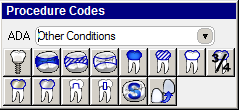
Click the following buttons to see the name and a description:
 Implant—To indicate an implant procedure,
click this button and select a tooth on the chart.
Implant—To indicate an implant procedure,
click this button and select a tooth on the chart.
 Amalgam—To indicate an amalgam procedure,
click this button and select the surfaces on a tooth.
Amalgam—To indicate an amalgam procedure,
click this button and select the surfaces on a tooth.
 Resin—To indicate a resin procedure,
click this button and select the surfaces on a tooth.
Resin—To indicate a resin procedure,
click this button and select the surfaces on a tooth.
 Sedative Filling—To indicate a sedative
filling procedure, click this button and select the surfaces on a tooth.
Sedative Filling—To indicate a sedative
filling procedure, click this button and select the surfaces on a tooth.
 Porcelain fused to Metal Crown—To
indicate a porcelain fused to a metal crown procedure, click this button
and select a tooth on the chart.
Porcelain fused to Metal Crown—To
indicate a porcelain fused to a metal crown procedure, click this button
and select a tooth on the chart.
 Resin fused to Metal Crown—To indicate
a resin fused to a metal crown procedure, click this button and select
a tooth on the chart.
Resin fused to Metal Crown—To indicate
a resin fused to a metal crown procedure, click this button and select
a tooth on the chart.
 Temporary Crown—To indicate
a temporary crown procedure, click this button and select a tooth on the
chart.
Temporary Crown—To indicate
a temporary crown procedure, click this button and select a tooth on the
chart.
 3/4 Metal Crown—To indicate
a 3/4 metal crown procedure, click this button and select a tooth on the
chart.
3/4 Metal Crown—To indicate
a 3/4 metal crown procedure, click this button and select a tooth on the
chart.
 Full Cast Metal Crown—To indicate
a full cast metal crown procedure, click this button and select a tooth
on the chart.
Full Cast Metal Crown—To indicate
a full cast metal crown procedure, click this button and select a tooth
on the chart.
 Stainless Steel Crown—To indicate
a stainless steel crown procedure, click this button and select a tooth
on the chart.
Stainless Steel Crown—To indicate
a stainless steel crown procedure, click this button and select a tooth
on the chart.
 Core Buildup—To indicate a core
buildup procedure, click this button and select a tooth on the chart.
Core Buildup—To indicate a core
buildup procedure, click this button and select a tooth on the chart.
 Post and Core—To indicate a post
and core procedure, click this button and select a tooth on the chart.
Post and Core—To indicate a post
and core procedure, click this button and select a tooth on the chart.
 Sealant—To indicate a sealant procedure,
click this button and select a surface on a tooth on the chart.
Sealant—To indicate a sealant procedure,
click this button and select a surface on a tooth on the chart.
 Veneer—To indicate a veneer procedure,
click this button and select a tooth on the chart.
Veneer—To indicate a veneer procedure,
click this button and select a tooth on the chart.
Note: The Procedure
Codes toolbar is customizable. To remove or add a button, right-click
and select Customize.
Related Topics
Setting Restorative Tab
Options
Accessing the Restorative
Tab
Chart Mode Toolbar
Conditions Toolbar
Mobility Toolbar
Skill Sharpeners