Getting Started > Understanding the Charting Module
The menu options duplicate the functions of buttons found on toolbars, with some exceptions.
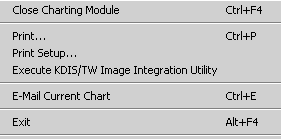
Click the File menu, and this submenu is displayed:
Click the Chart menu, and this submenu is displayed:
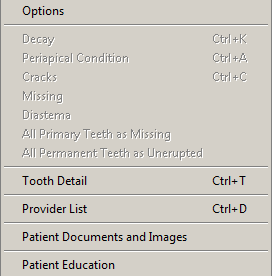
If you click the Options choice on the Chart menu, the Chart Properties window is displayed.
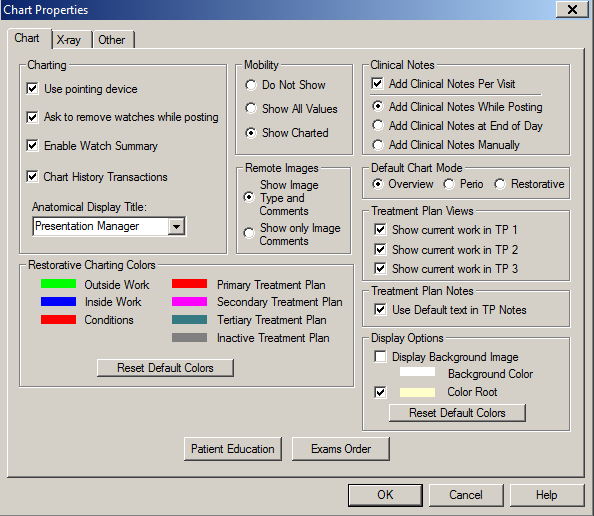
You can select the tab that opens by default when you access the charting module—Overview or Perio—in the Default Chart Mode section of the Chart Properties window.
Click the Perio menu, and this submenu is displayed:
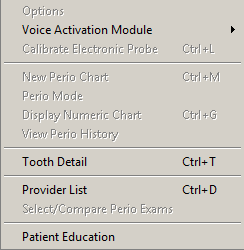
The Options command and a few perio-specific commands are enabled only when the Perio tab is the active window.
Click the Mode menu, and this submenu is displayed:
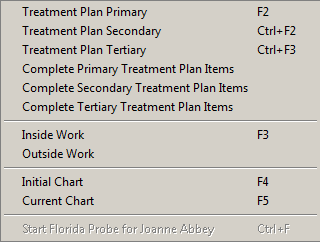
Click the View menu, and this submenu is displayed:
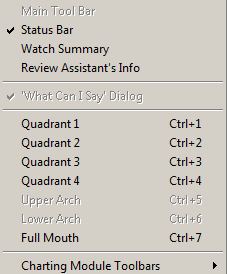
Select Charting Module Toolbars, and you can see a list of all the tab-specific toolbars. A checkmark next to a toolbar indicates that the toolbar is displayed when the appropriate tab is selected.
If you want to hide a toolbar, select View > Charting Modules Toolbars and deselect the toolbar you want to hide. If you want to display it again, select View > Charting Modules Toolbars and click the toolbar.
With the exception of the Common toolbar, each toolbar is displayed on only one of the tabs. For example, if each toolbar has a checkmark, the toolbars would be displayed in the following way:
Restorative tab
Common toolbar
Chart Mode toolbar
Procedure Codes toolbar
Conditions toolbar
Mobility toolbar
Perio tab
Perio Views toolbar
Probe toolbar
Keypad toolbar
Perio Mobility toolbar
Plaque toolbar
Calculus toolbar
Perio Conditions toolbar
Exams tab
Patient Exams toolbar
Exam Options toolbar
Common toolbar
Clinical Imaging tab
Common toolbar
Clinical Imaging toolbar
Image Layout toolbar
Treatment Planning tab
Common toolbar
Treatment Plan Mode toolbar
Treatment Plan toolbar
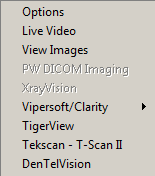
Click the Video menu, and this submenu is displayed:
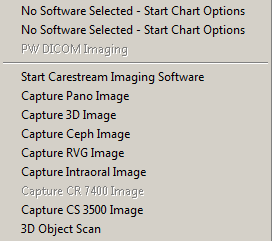
Click the X-ray menu, and this submenu is displayed:
Click the Clinical Notes menu, and this submenu is displayed:
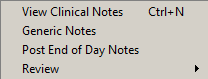
Click the Save All menu to save any changes to the open chart.
Click the Help menu, and this submenu is displayed:
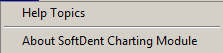
If you select About SoftDent Charting Module, you can see the version of the software that you are using. You will need the version number if you contact Support.