Getting Started >
Understanding the Charting
Module
Common Toolbar
The Common toolbar enables you
to perform a number of common administrative procedures—the kind that
you routinely do in the practice management software—in the charting module.
Instead of going back and forth between the charting module and the practice
management software, you can do these functions in the charting module.
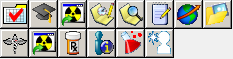
The following buttons on the Common
toolbar are found on the Restorative,
Exams, Clinical
Imaging, and Treatment Planning
tabs. Click a button to see the name and a description.
 View Patient’s Appointment for Today—Opens
a window that summarizes today’s appointment, including procedures and
payments. You can also edit and post today’s charges.
View Patient’s Appointment for Today—Opens
a window that summarizes today’s appointment, including procedures and
payments. You can also edit and post today’s charges.
 Patient Education—Enables you to
set up a patient education program. Type the drive, directory, and path
where the education program is located.
Patient Education—Enables you to
set up a patient education program. Type the drive, directory, and path
where the education program is located.
 Start the Selected X-ray Application—Launches
your x-ray capture program.
Start the Selected X-ray Application—Launches
your x-ray capture program.
 Make Appointment—Opens a window
that summarizes the patient’s appointment preferences, next recall date,
and so forth. Click Close to return
to the charting module.
Make Appointment—Opens a window
that summarizes the patient’s appointment preferences, next recall date,
and so forth. Click Close to return
to the charting module.
 Scheduler—Opens the Scheduler window. You can
make, change, or cancel appointments.
Scheduler—Opens the Scheduler window. You can
make, change, or cancel appointments.
 Review End of Day Notes—Opens a
window that enables you to add or edit an end-of-day note.
Review End of Day Notes—Opens a
window that enables you to add or edit an end-of-day note.
Note: If the Review
End of Day Notes button is inactive, it can be turned on by selecting
Chart > Options > Add clinical
notes at end of day.
 Email This Patient’s Chart—Opens
the Email window. Browse to select
charts and images to attach to the email. Click Close
to return to the charting module.
Email This Patient’s Chart—Opens
the Email window. Browse to select
charts and images to attach to the email. Click Close
to return to the charting module.
 Show Patient’s Documents and Images—Opens
a list of the patient’s documents and images. Click Close
to return to the charting module.
Show Patient’s Documents and Images—Opens
a list of the patient’s documents and images. Click Close
to return to the charting module.
 Patient Medical History—Opens a
patient’s Medical History window.
This window contains information on medications, allergies, height, weight,
physician’s name, and other data. Patient information can be updated here.
Click Close to return to the charting
module.
Patient Medical History—Opens a
patient’s Medical History window.
This window contains information on medications, allergies, height, weight,
physician’s name, and other data. Patient information can be updated here.
Click Close to return to the charting
module.
 Prescription—Opens the Prescriptions
for window. You can prescribe drugs, view current prescriptions,
and refill prescriptions. Click Close
to return to the charting module.
Prescription—Opens the Prescriptions
for window. You can prescribe drugs, view current prescriptions,
and refill prescriptions. Click Close
to return to the charting module.
 Display This Patient’s Information Dialog—Opens
the Patient window. All of the
patient’s basic data—address, date of birth, balances, doctor, hygienist,
and so forth—are displayed. You can view patient insurance eligibility,
view a list of transactions, and access SoftDent functions. Click Close to return to the charting
module.
Display This Patient’s Information Dialog—Opens
the Patient window. All of the
patient’s basic data—address, date of birth, balances, doctor, hygienist,
and so forth—are displayed. You can view patient insurance eligibility,
view a list of transactions, and access SoftDent functions. Click Close to return to the charting
module.
 Display the Patient’s Lab Cases—Opens
the patient’s Lab cases window.
You can add, edit, or delete a lab case; and mark the case returned or
complete. Click Close to return
to the charting module.
Display the Patient’s Lab Cases—Opens
the patient’s Lab cases window.
You can add, edit, or delete a lab case; and mark the case returned or
complete. Click Close to return
to the charting module.
 Capture Patient Portrait—Opens the
Patient Portrait window. You can
view, import, or delete an image in this window; or modify the hardware
of the camera or card. Click the X
in the upper-right of the window to return to the charting module.
Capture Patient Portrait—Opens the
Patient Portrait window. You can
view, import, or delete an image in this window; or modify the hardware
of the camera or card. Click the X
in the upper-right of the window to return to the charting module.
Description Toolbar
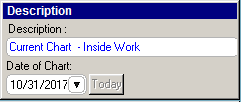
The Description toolbar is available
on each tab. This shows today’s date and enables you to view a previous
date’s chart.
Related Topics
Main Toolbar
Patient Banner
Menus