Creating an Online Booking Schedule
To create an online booking schedule in Patient Bridge:
-
From the main menu, select Patient Portal.
-
Click Manage Schedule.
-
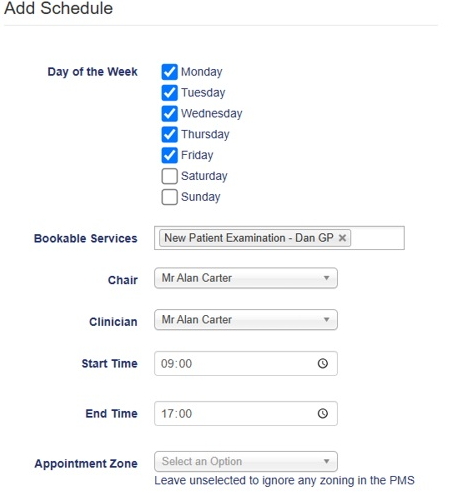
Click Add Schedule. The Add Schedule window is displayed.
-
Complete all sections of the schedule:
-
Day of the Week—If you are open the same time on certain days you can create all in one. If not, select the appropriate days.
-
Bookable Services—Select the service you want to open for online booking.
-
Chair/Clinician—Select the same clinician in both of these sections.
-
Start Time—Select the time to open the book.
-
End time—Select the time to close the book
-
Appointment Zone—Session types in Sensei Cloud; it is recommended that you leave this field blank.
-
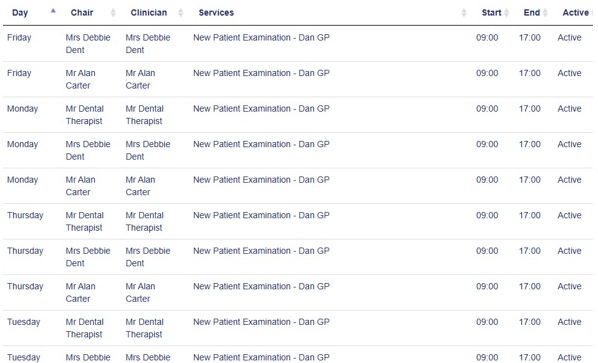
Repeat the process for each dentist. The system breaks down each day and each clinician with the time and dates so you can amend one day at a time, if necessary.
Viewing Recent Messages Sent to Patients
Creating an Online Booking Service
Creating an Online Booking Website Link
Checking the Status of Payments