Working with Charges and Payments
Transferring Location Credits
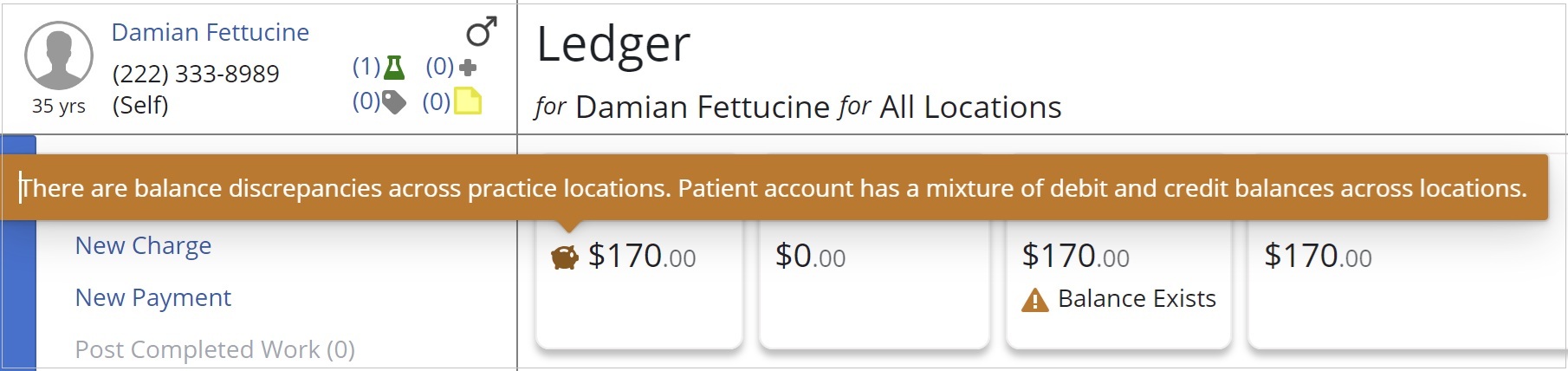
Balance discrepancies across Practice Locations (often created by posting charges or payments to the wrong Practice Location) can be corrected using the Transfer Location Credit feature from the Patient Ledger.
Users can transfer a credit balance from one Practice Location to another, resolving the balance discrepancy for the patient account. This allows you to post the necessary adjustments (a credit to one location and a debit to the other) without affecting the patient's overall balance amount.
To correct a balance discrepancy across practice locations:
-
From the Patient tab, select Financials > Ledger.
-
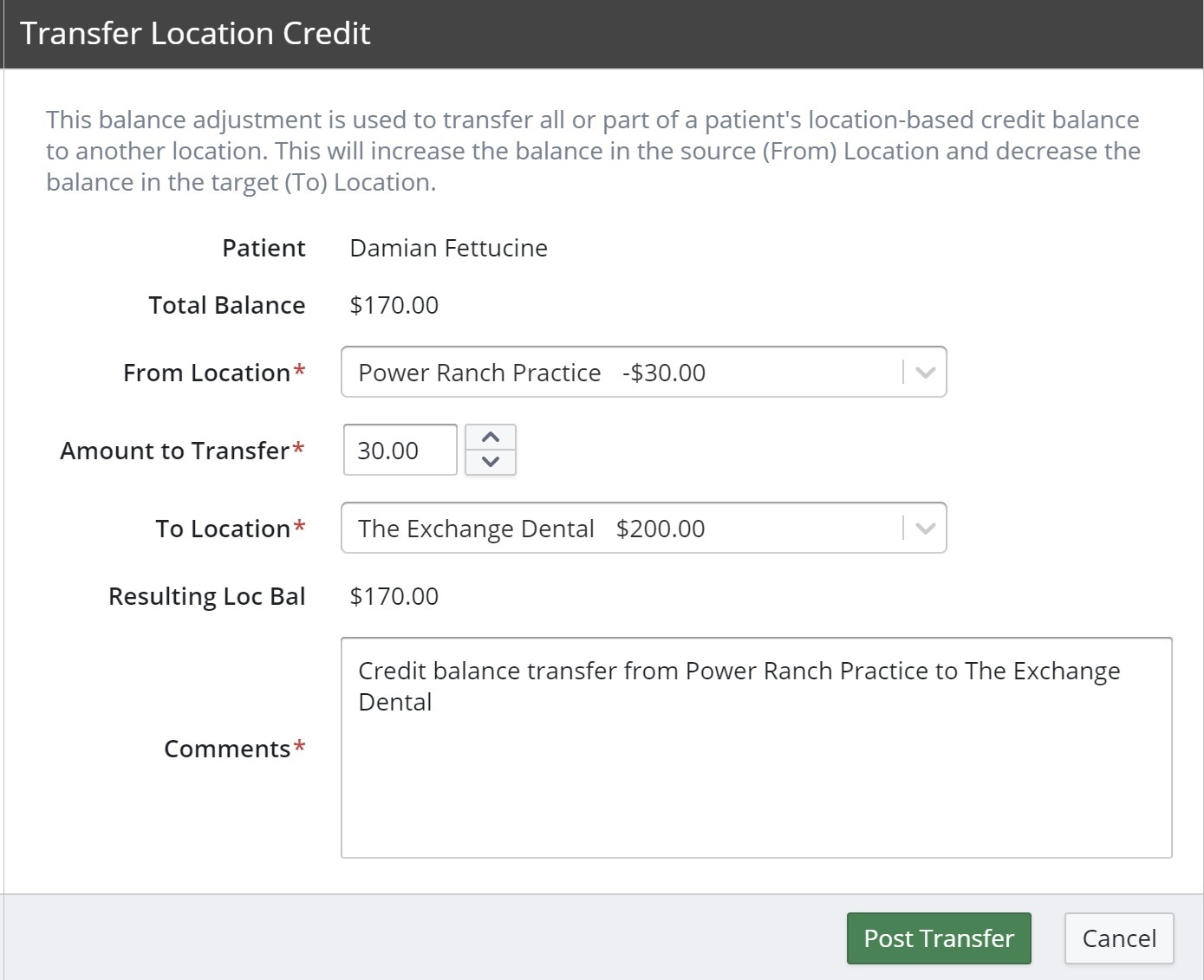
Under Actions, select Transfer Location Credit. The Transfer Location Credit window is displayed.
Note: This option is only available if the patient has a credit balance at at least one location. -
From the From Location drop-down list, select a location to transfer the credit from. The Current Balance updates accordingly based on the selected location.
Note: The available Practice Locations from this drop-down list include only the locations for which the sending patient has a credit balance. -
Enter the amount of the credit that you want to transfer.
Note: You can enter any amount up to the full amount of the credit. -
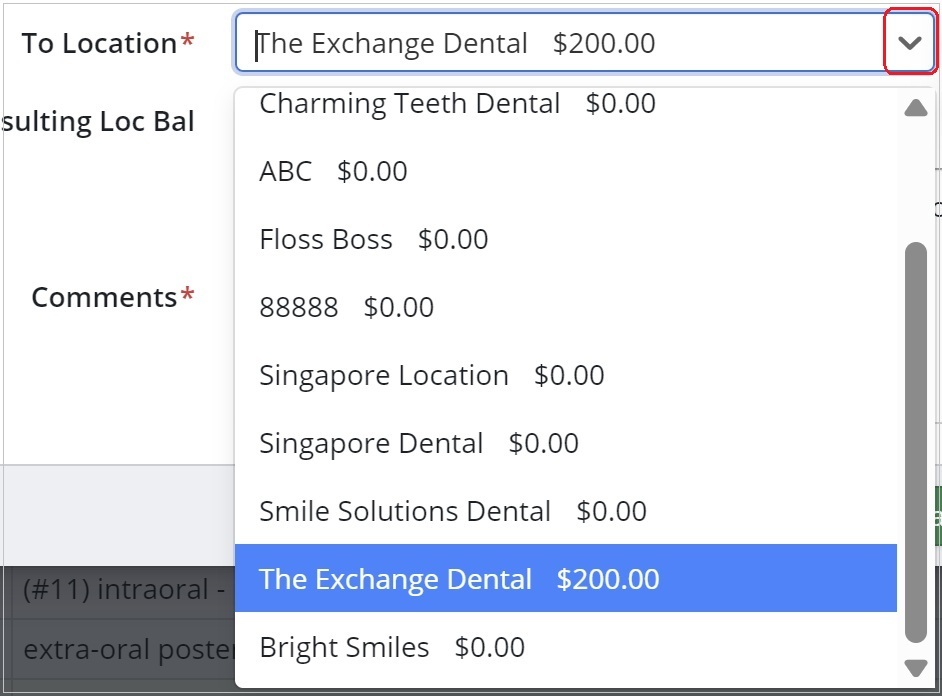
From the To Location drop-down list, select the location the credit balance is being transferred to.
Note:
-- The current balances for each location are displayed next to the Location Name in the drop-down list.
-- When a To Location is selected, the Resulting Location Balance is updated.
-
Keep the default comment, edit the comment, or type your own.
-
Click Post Transfer. The ledger is updated with two new Patient Balance Transfer entries, one for the Location Transfer (Credit) and one for the Location Transfer (Debit). If the posted transfer amount is enough to result in there no longer being a credit at one location and a debit at another, the Balance Discrepancy (Piggy Bank) icon is no longer present on the ledger (or in the Accounts Receivable List).
Note: You can also transfer location credits from the Accounts Receivable List (All Locations or Location > Financials > Accounts Receivable).