Setting Up Orthodontic Contracts
Managing Insurance Changes to an Ortho Contract
When insurance coverage associated with a pending or active contract becomes invalid, you are prompted to update affected contracts. This can happen if you mark an insurance policy as Inactive or remove it from the Patient Record.
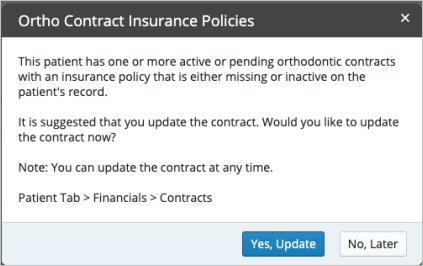
If you click Yes, Update, you are automatically redirected to the patient’s contracts list where you can edit the applicable contracts and remove the associated insurance charge schedules. When charge schedules are removed or adjusted, the remaining balance is recalculated as the responsibility of the guarantor.
To adjust insurance coverage on a pending or active contract:
-
On the Patient tab, select Financials > Contracts.
-
Select the contract to adjust and click Edit Contract.
-
Scroll down to the Contract Charge Schedules section. From here you can:
-
Click Remove Charge Schedule to remove an existing schedule. The guarantor's portion of the contract is recalculated automatically.
-
Click Add Charge Schedule to create a new schedule. Select the patient's primary or secondary insurance from the Plan field.
Note: An insurance policy must be entered into the Patient Record before it can be selected here.
-
Edit an existing charge schedule for the Amount being paid by the insurance company, the Frequency and Charge Amount for subsequent charges, and the Next Charge Date. The # Chgs Remaining and Remaining Balance fields are recalculated automatically, as well as the guarantor's portion of the contract.
-
Click Save Contract.
Setting Plan-Based Defaults for Ortho Coverage
Setting Up Automatic Payments in an Ortho Contract
Removing Automatic Payments from an Ortho Contract