On the Patient tab, select Financials > Payment Plans. The Payment Plans window is displayed.
Under Actions, click New Payment Plan. The Payment Plan is displayed.
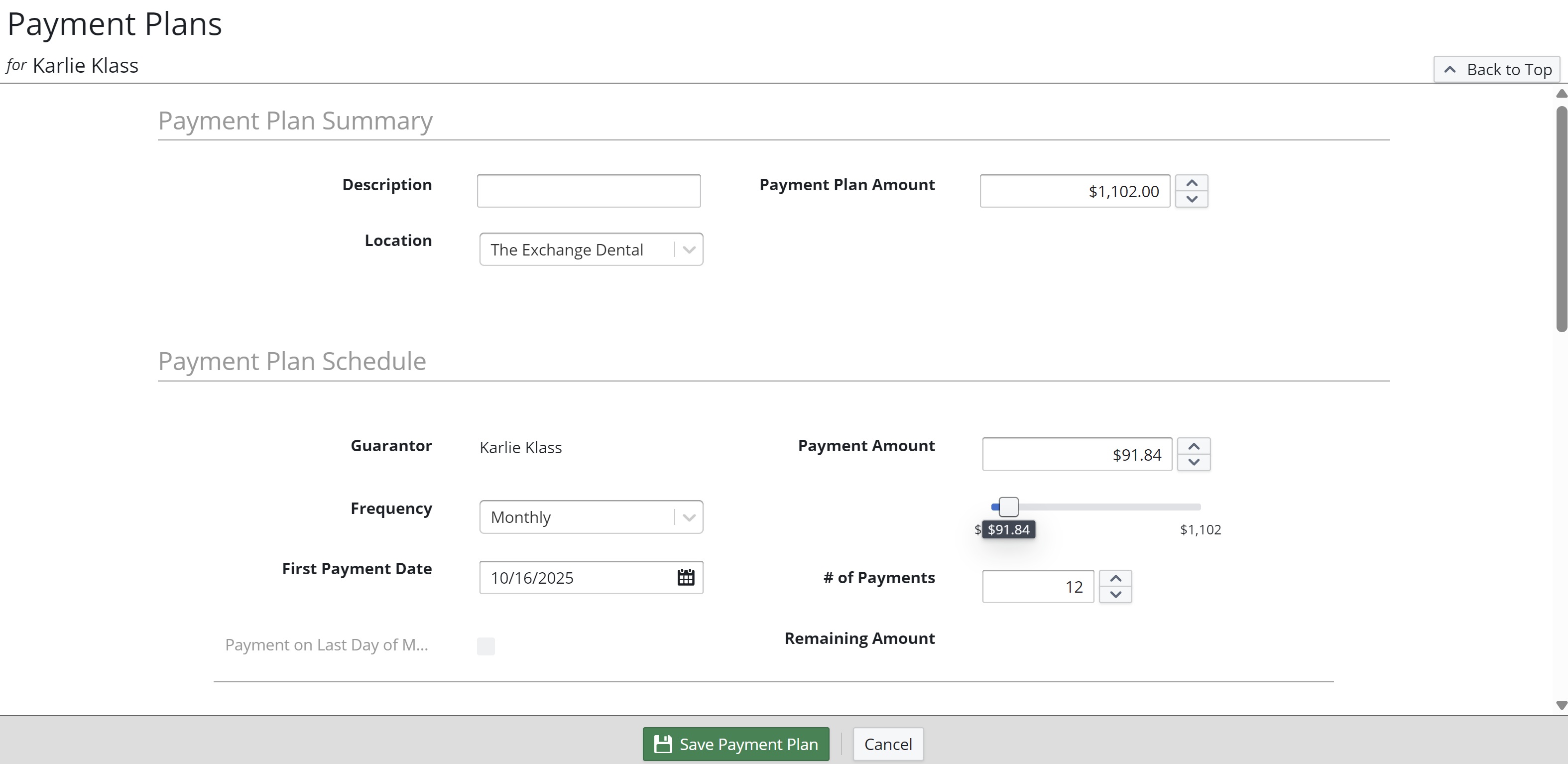
Under Payment Plan Summary:
-- Enter the plan description. Note: When choosing a description, keep in mind that the payment plan description is displayed on payments in the patient ledger and within statements.
-- Select a location. Note: To select a location, the patient must have a balance for that location. The patient can have one active payment plan per each location in which they have a balance.
-- Confirm the payment plan amount (this defaults to the total Patient Share balance for the location but can be decreased).
Under Payment Plan Schedule:
-- Confirm the Guarantor (this can be updated in the patient record as needed).
-- Select a payment frequency of Monthly, Quarterly, Semi-Annually, or Annually.
-- Enter the first payment date (this defaults to a month from today's date, but you can also select a future date).
-- Confirm or change the payment plan amount or the number of payments (if one is changed, the other adjusts accordingly).
Under Automatic Payments, click Add Automatic Payments to set up autopayments for the payment plan.
In the Automatic Method field, click Add Automatic Payment Method. The Add Automatic Payment Method window is displayed.
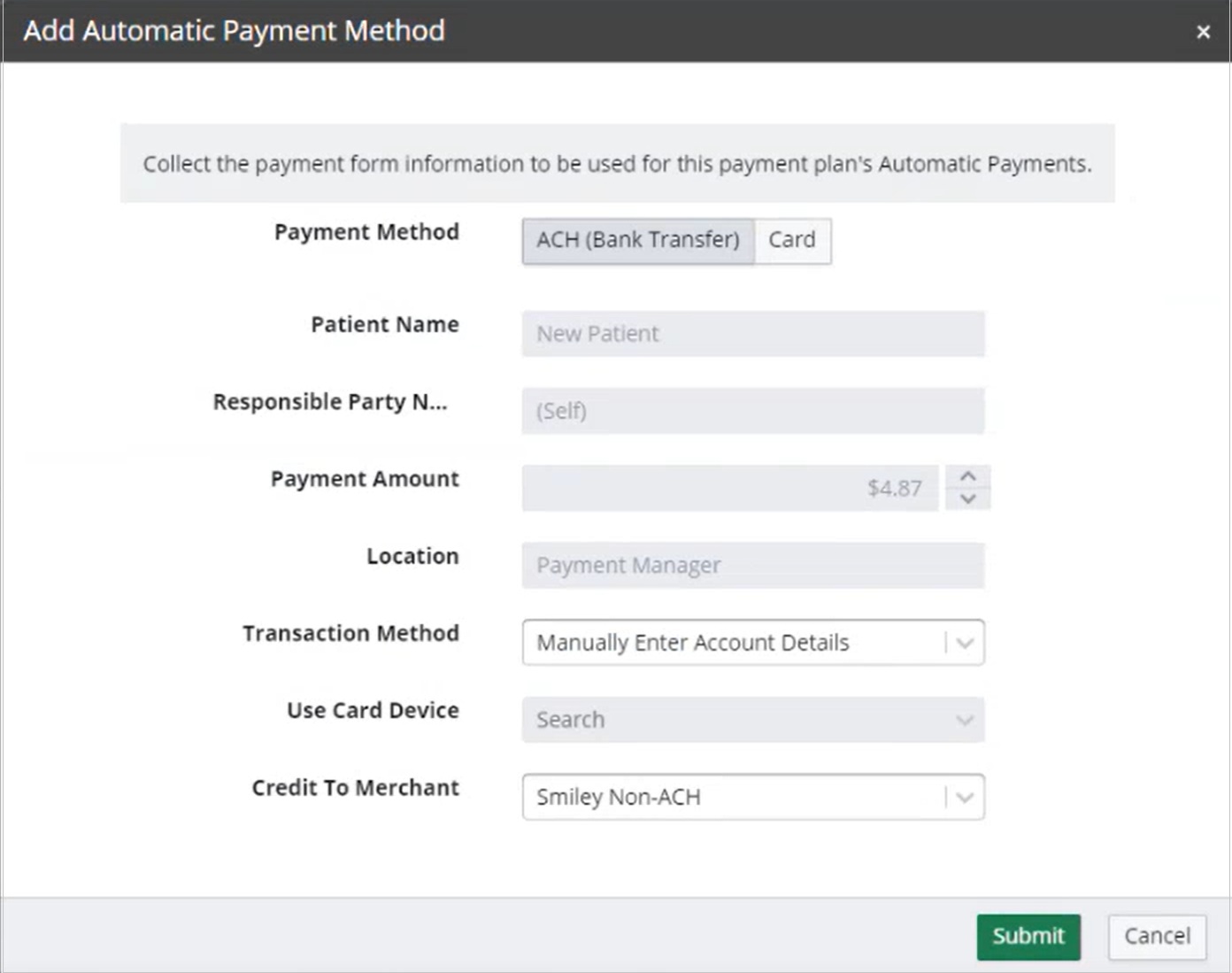
Select a Payment Method of Card or ACH (Bank Transfer).
Confirm the selection in the Transaction Method field. When Card is the selected payment method, Insert / Tap / Swipe Card is selected by default. When ACH is the selected payment method, Manually Enter Account Details is selected by default.
In the Use Card Device field, select a device to which you have physical access.
Note: This menu only requires a selection for card payment forms; when ACH is selected, this menu is disabled. If the card is not present or you are handling the setup remotely, select Manually Enter Card Details and follow the on-screen instructions.
In the Credit To Merchant field, select the merchant account to credit with the payments.
Note: For ACH payments, you must select a merchant account that is configured for ACH-based transactions. When you select a merchant that is not configured, a message is displayed.
Click Submit.
If applicable, follow the instructions on the card device.
Click Save Payment Plan.
Click Activate Now to activate the payment plan right away and begin the payment plan schedule or click Activate Later.