Setting Up Payment Plans
You can set up payment plans that use Payment Manager to process regular charges from a Responsible Party's credit card. Once the plan is activated, the card is charged automatically on the designated dates.
When the Office Expert runs each morning, payment plan payments scheduled for that day are forwarded to Payment Manager. Do not interrupt this process. If the Office Expert is interrupted, you can generate it manually.
IMPORTANT: PracticeWorks does NOT store credit card numbers. The interface between PracticeWorks and Global Payments, Inc. (GPI) shares a "token" that enables a repeat use of the card stored for the payment plan. The practice cannot access the full card information used by GPI.
To set up a payment plan:
-
From the patient's Ledger Card, select Add entry. The Post new entries window is displayed.
-
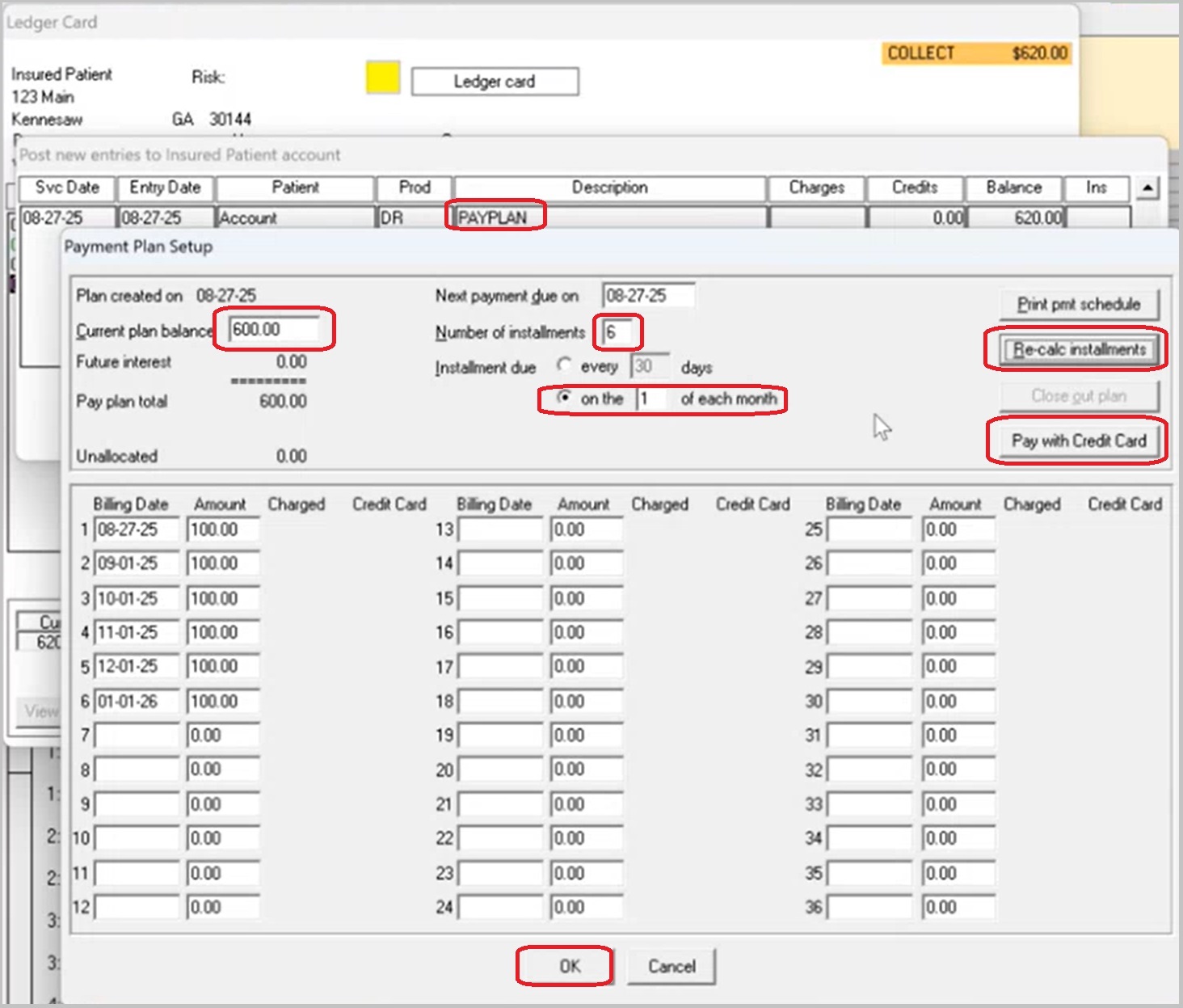
In the Description field, type payplan and press the tab key. The Payment Plan Setup window is displayed.
-
Enter the Credit balance and Number of installments, along with the frequency and due date.
-
Click Re-calc installments. The payment dates and amounts are populated in the schedule.
-
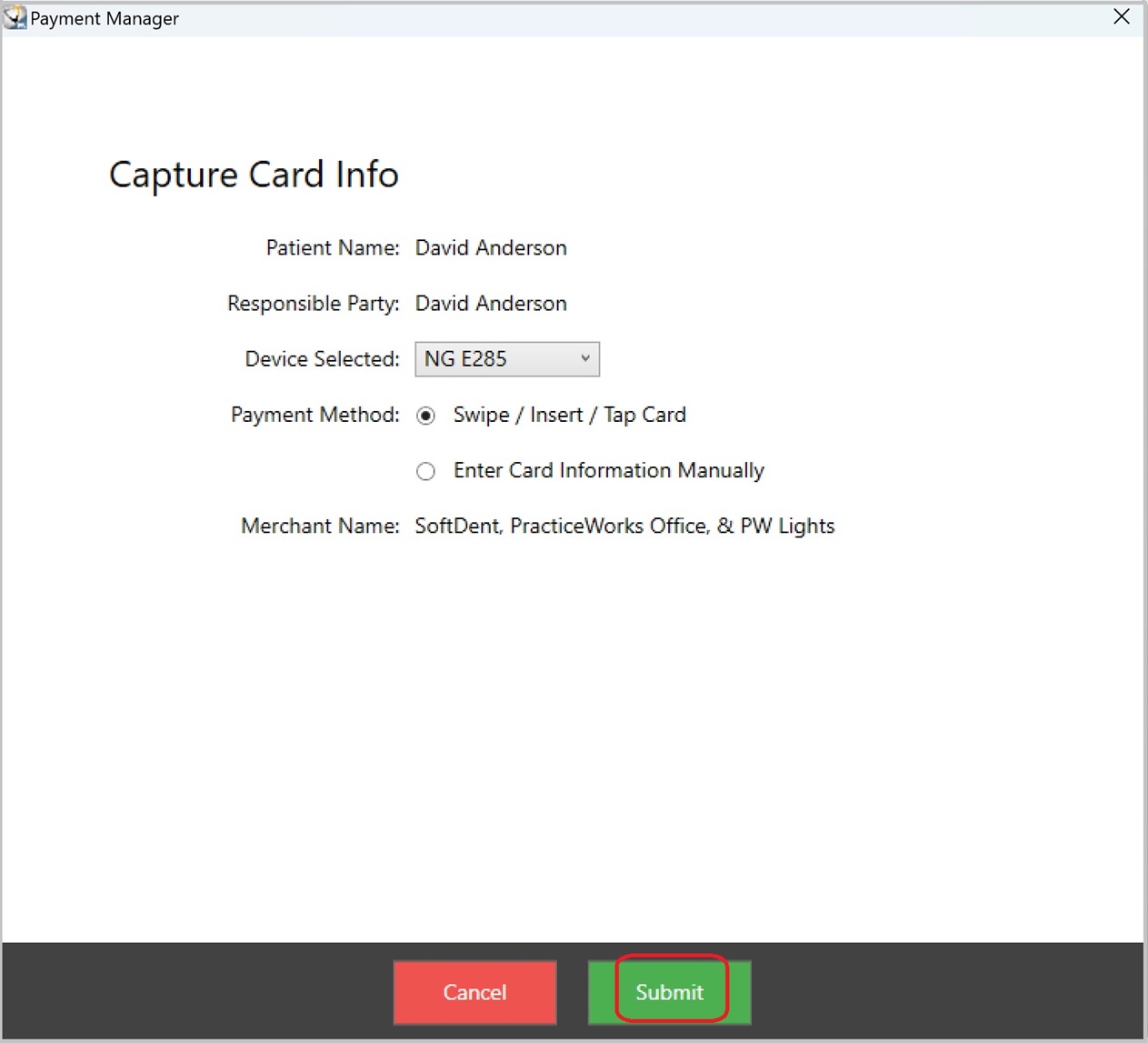
Click Pay with Credit Card. The Payment Manager Capture Card Info screen is displayed.
-
Select the preferred Payment Method and click Submit.
-
Capture the card's information using the selected method, and then click Submit. The window displays: Card Successfully Captured! along with the Token Id, Cardholder, and Expiration (date). You are prompted to print a receipt.
-
Click Finished.
Note: If the card's expiration date overlaps with the consent dates of the contracted payment plan, a warning message is displayed, providing the option to continue using this card (Yes/No). You are prompted to either adjust the terms with the current card or capture the details of a different card.
After the payment plan is established, you can use the Payment Plan window (Ledger Card > View pay plan) to view and edit details, update the card being used, and print or remove the currently active credit card consent as needed.
Note: Existing Payment Plans set up for ePayments version 1 are converted to Payment Manager for you. If you receive an error: "Payment Manager conversion must be run," contact your Carestream Dental Support representative.
Voiding or Refunding a Payment
Managing Failed Payment Transactions
Printing a Daily Transactions Report