Processing Insurance Payments
You can use Payment Manager to process Insurance payments that are delivered via credit card number. This method usually involves the manual entry of credit card information provided by the insurance company in their claim response.
To enter an insurance payment:
-
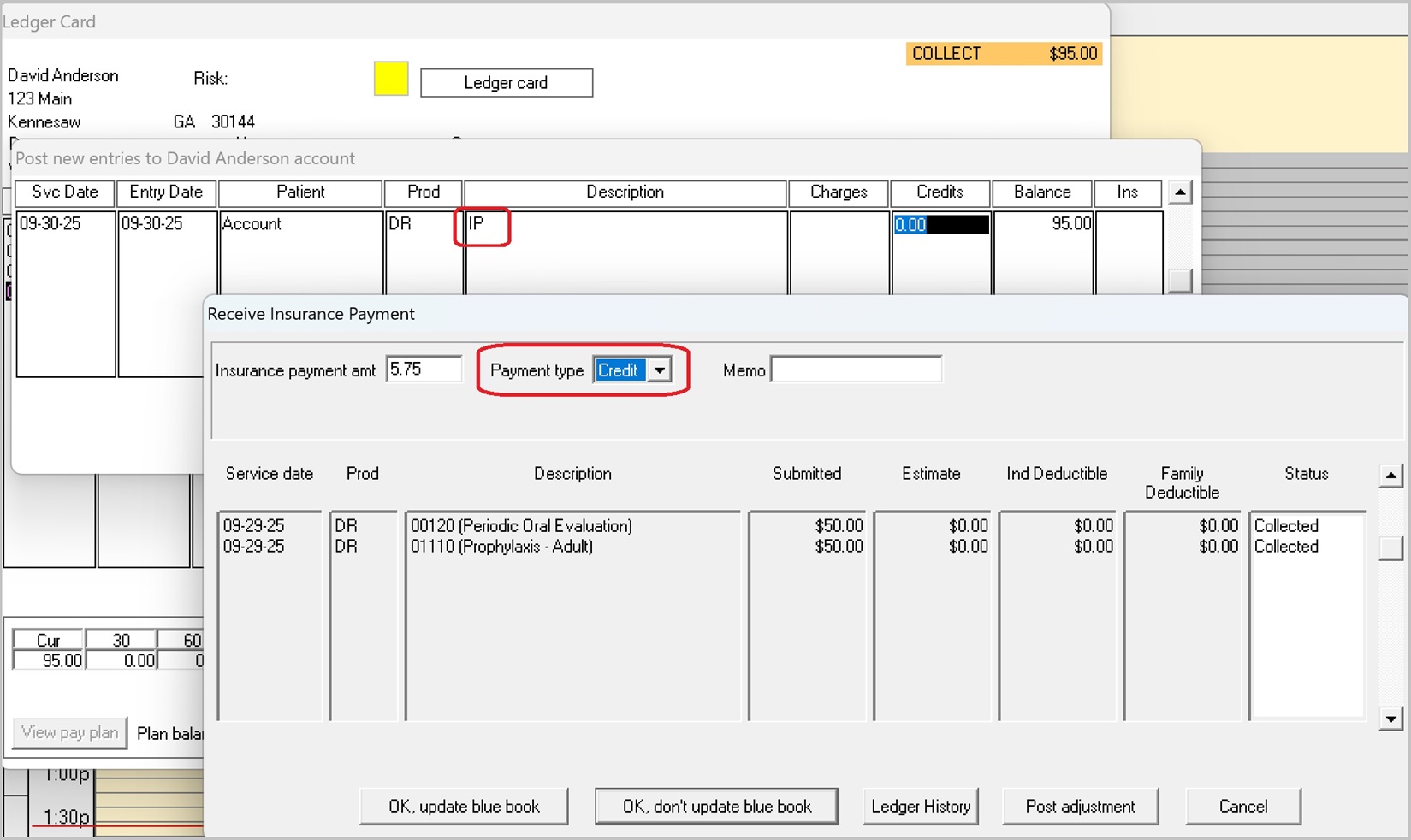
From the patient's Ledger Card, select Add entry. The Post new entries window is displayed.
-
In the Description field, enter the Insurance Payment code (IP). The Outstanding Claim Pick List is displayed.
-
Select the claim for which you are entering a payment and click OK. The Receive Insurance Payment window is displayed.
Note: To enter a payment without selecting a claim, click Cancel and continue the posting process. -
Enter the Insurance payment amt and then select a Payment Type of Credit.
-
Select the appropriate option at the bottom of the window. The Payment Manager Take Payment screen is displayed.
-
For the Payment Method, select Enter Card Information Manually. (Do NOT select Last Card Used!)
-
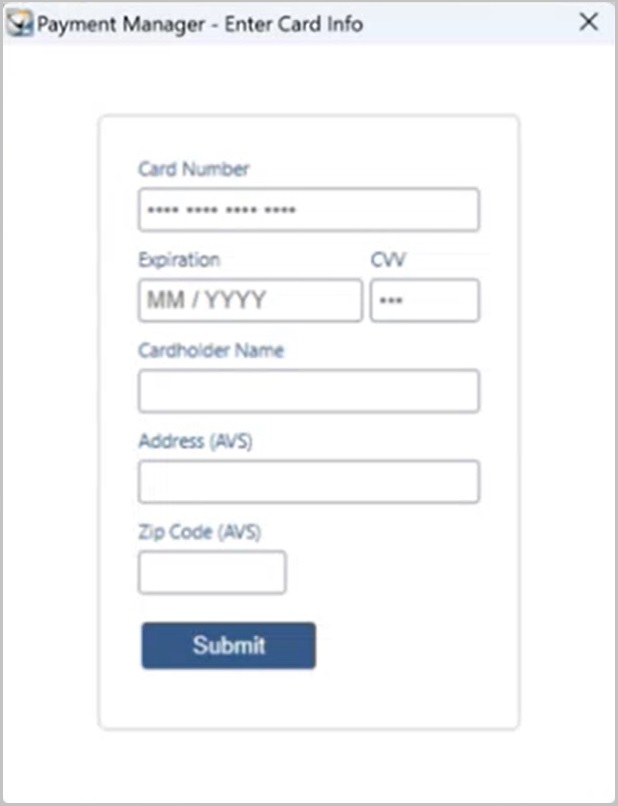
Click Submit and enter the card information into the appropriate fields.
-
Click Submit. When the payment is processed, the window displays: Payment Successfully Completed! along with the Authorization # and Approved Amount. You are prompted to print a receipt.
When the payment is posted, a Ledger Card entry is created with the description: IP CR (Srvc date), indicating it is an insurance payment, credit, and the service date of the claim being paid.
Bulk Insurance Payments
To process a bulk insurance payment using Payment Manager:
-
Select Lists > Bulk Payments > Main Bulk Payments list. The Bulk Payment Pick List is displayed.
-
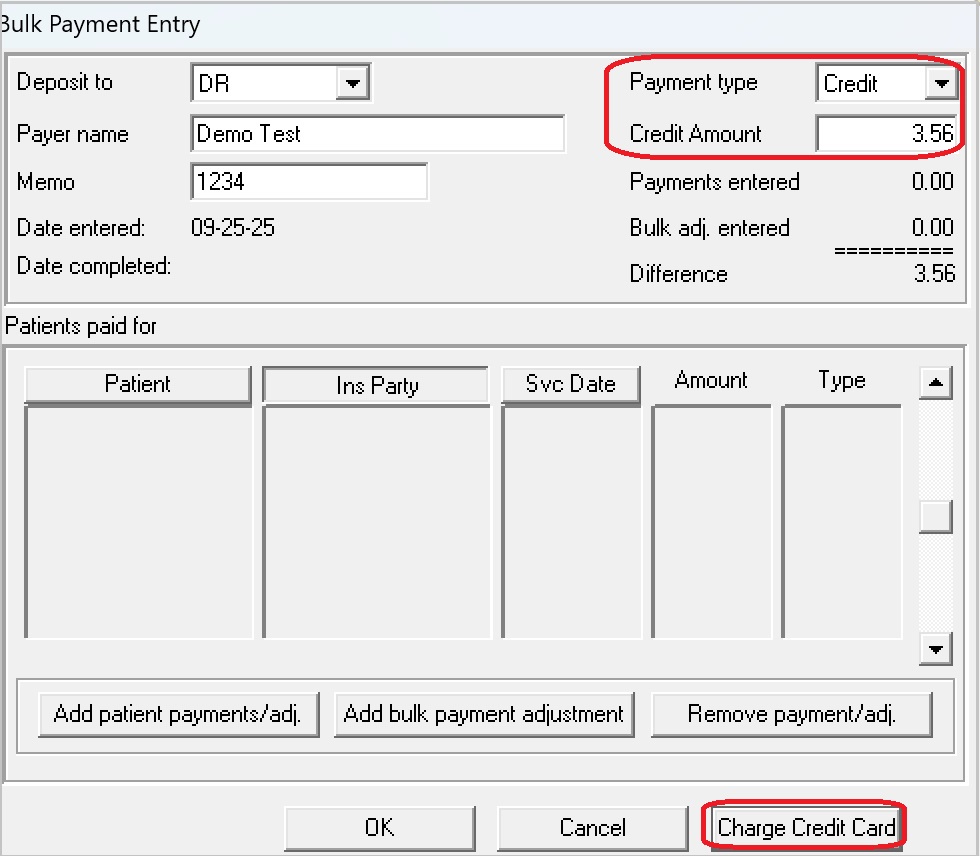
Select the payment you are processing and click Edit. The Bulk Payment Entry window is displayed.
-
Enter the details of the payment, and select the Payment type of Credit. The Payment Manager Take Payment screen is displayed.
Note: You can click Cancel on the Take Payment screen, and then use the Charge Credit Card button on the Bulk Payment Entry window to access Payment Manager when you are ready. -
For the Payment Method, select Enter Card Information Manually.
-
Click Submit. When the payment is processed, the window displays: Payment Successfully Completed! along with the Authorization # and Approved Amount. You are prompted to print a receipt.
When the payment is posted, the Bulk Payment Entry window shows the payment as Authorized, and the entry fields are disabled.
Voiding or Refunding a Payment
Managing Failed Payment Transactions
Printing a Daily Transactions Report