Processing Patient Payments
Access Payment Manager from the Credit Card button on the patient's Ledger Card, the Check Out Ledger, or the Post new entries window. You can also access Payment Manager by adding a credit card payment code manually to a patient’s ledger.
To enter a payment using Payment Manager:
-
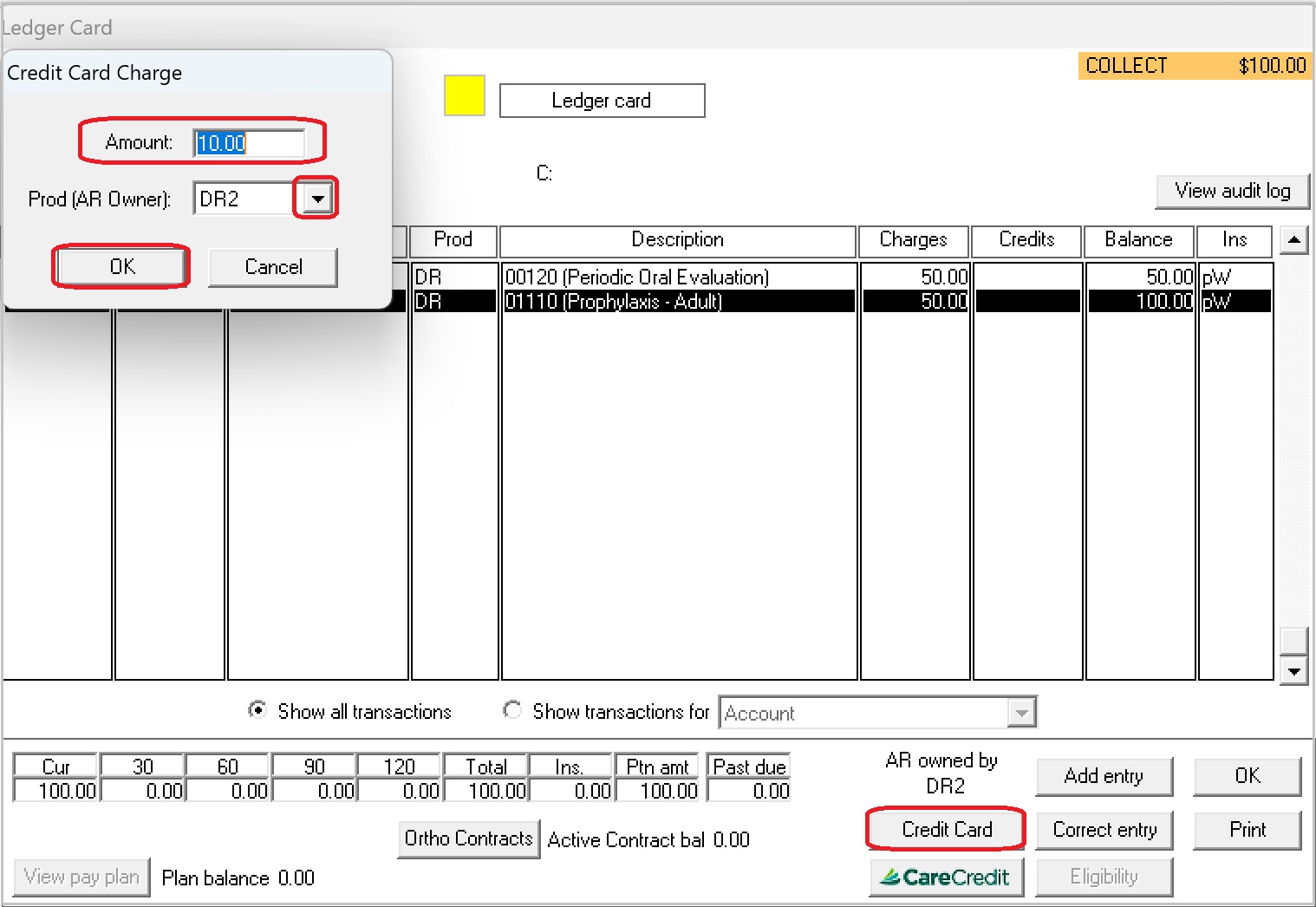
On the patient’s Ledger or Checkout Ledger, select the Credit Card button. The Credit Card Charge window is displayed.
-
Enter the Amount and select the Prod (AR Owner) from the list.
-
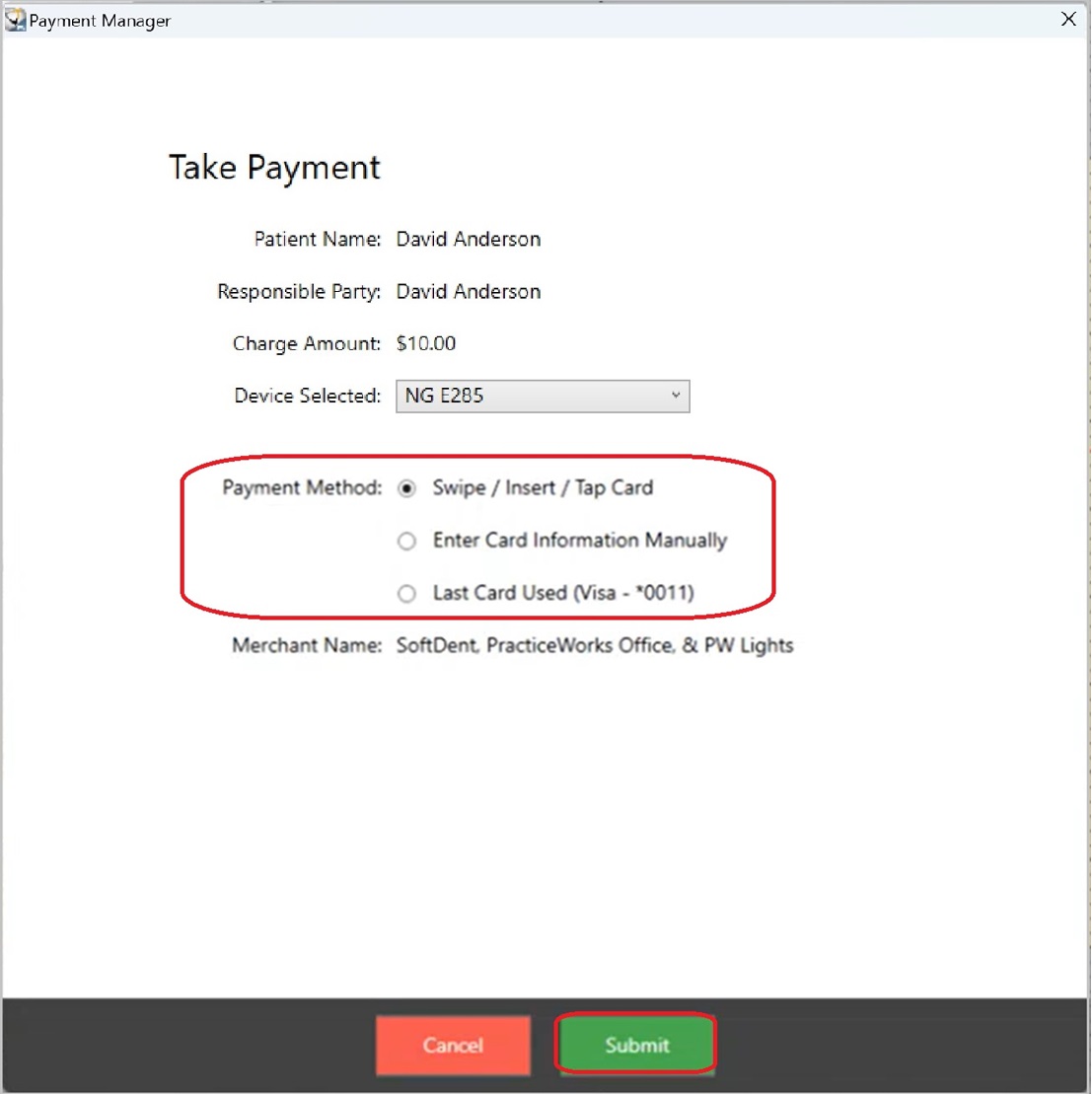
Click OK. The Payment Manager Take Payment screen is displayed, populated with the Patient Name and Responsible Party, along with the Charge Amount and the default Selected Device.
-
For Payment Method, select one of the following:
-- Swipe/Insert/Tap Card - The selected device is enabled. Use the device to capture the card information.
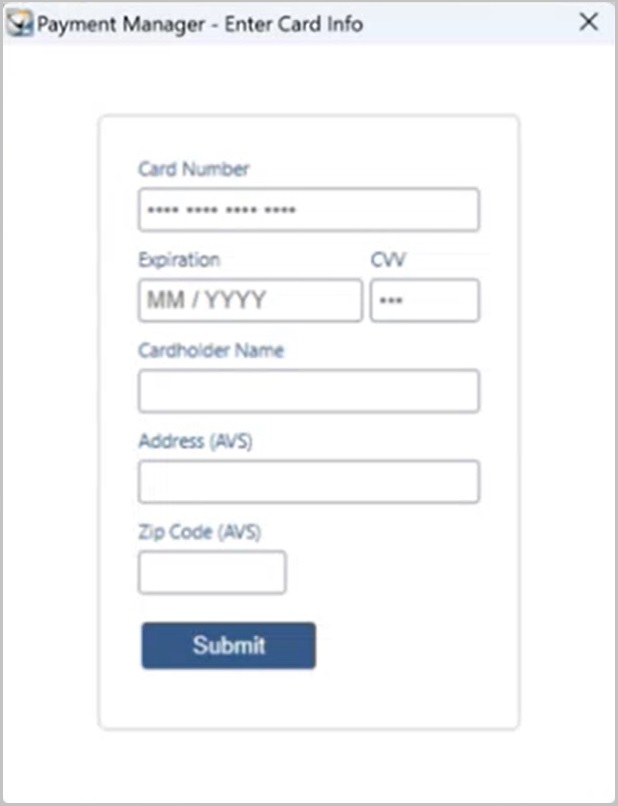
-- Enter Card Information Manually - Click Submit.
The Enter Card Info window is displayed; enter details into the appropriate fields.
-- Last Card Used (Visa - *0011) - This option is available when a previous credit card payment was successfully processed using Payment Manager for this account.
IMPORTANT: PracticeWorks does NOT store credit card numbers. The interface between PracticeWorks and Global Payments, Inc. (GPI) shares a "token" that enables a repeat use of the previous credit card used by the patient. The practice cannot access the full card information used by GPI to complete the payment. -
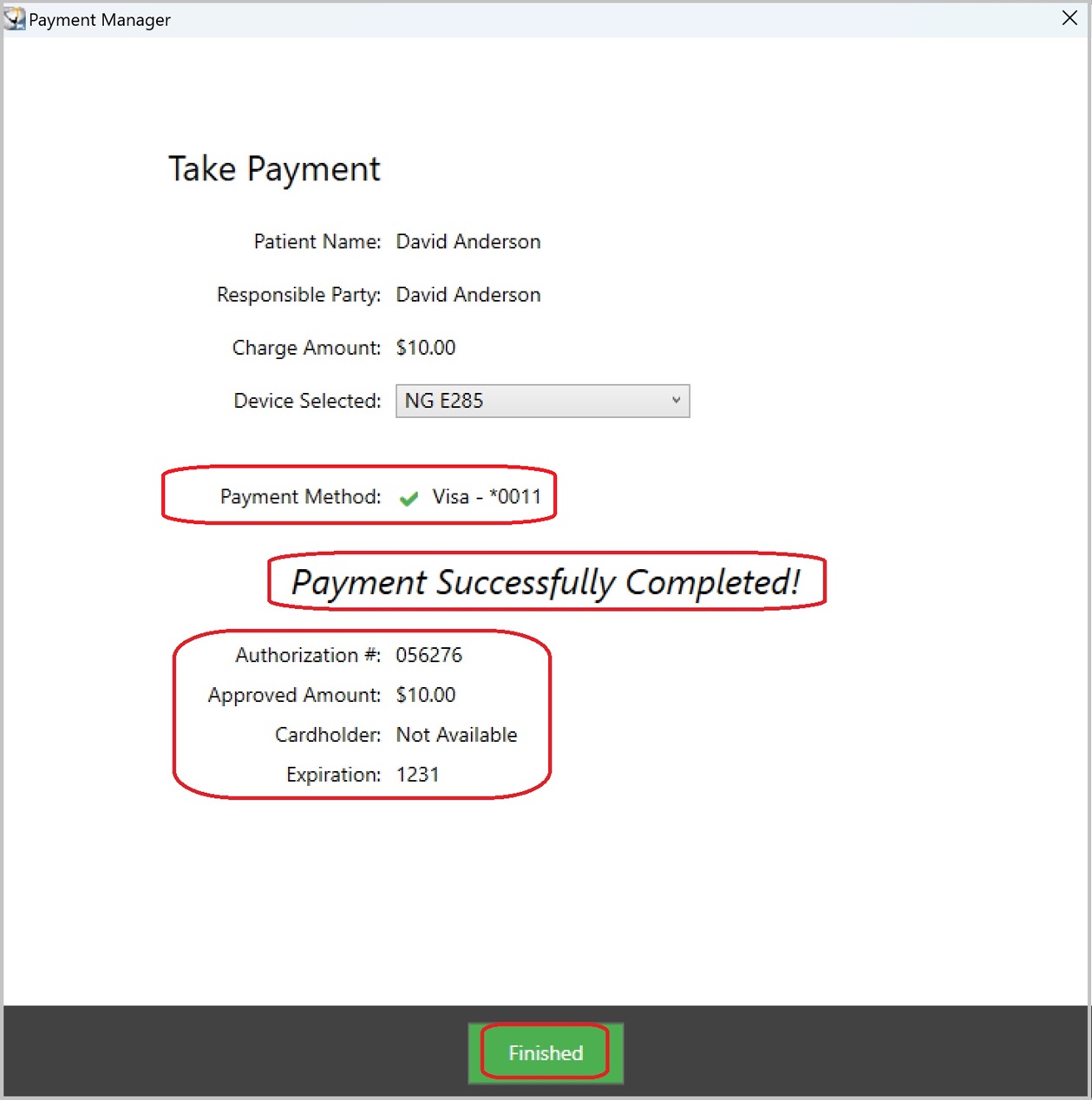
Click Submit. When the payment is processed, the window displays: Payment Successfully Completed! along with the Authorization # and Approved Amount.
-
Click Finished. You are prompted to print a receipt.
-
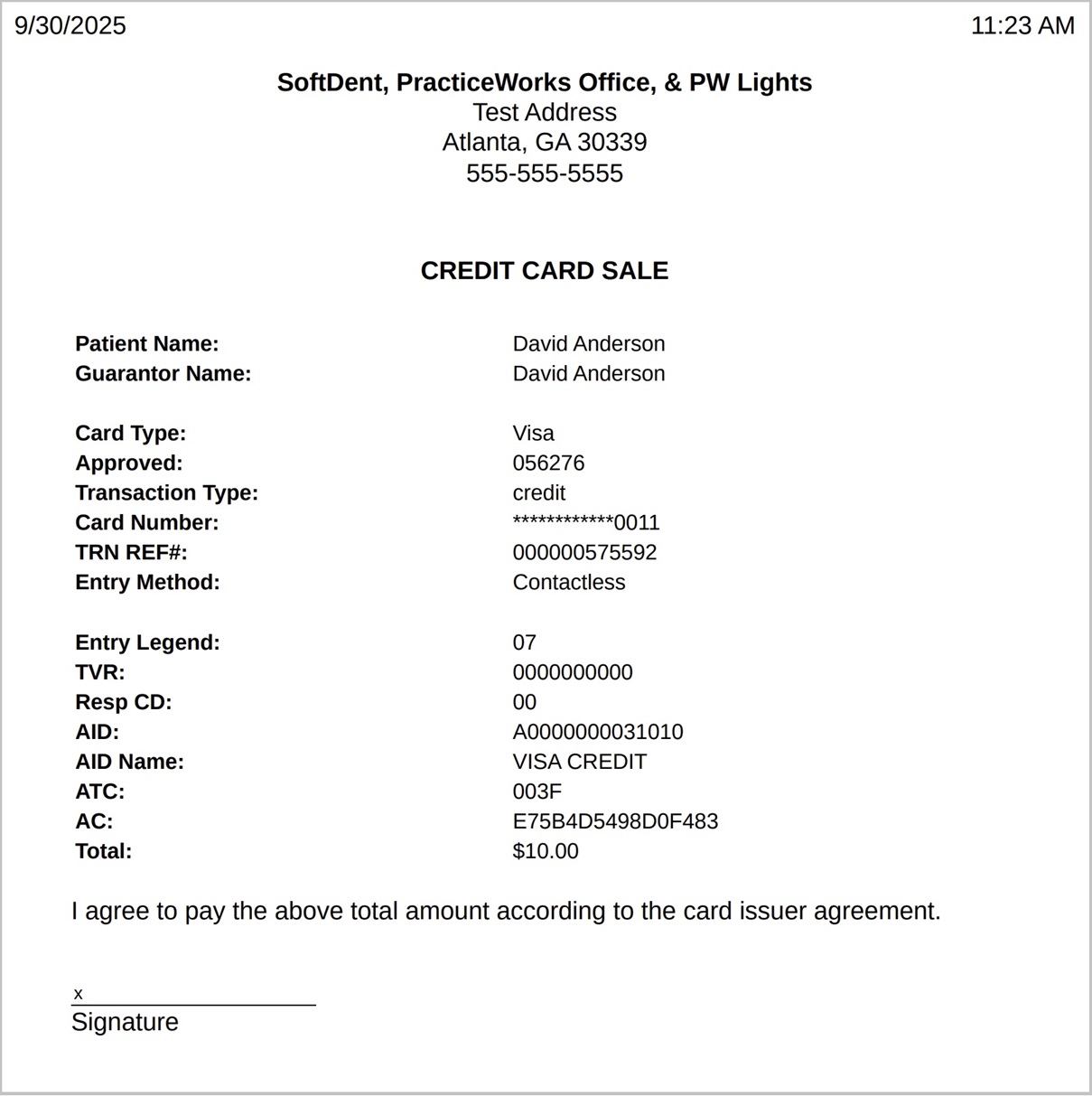
Click Yes/OK. A PDF file of the receipt is generated and opened, enabling you to print or save the receipt as needed.
Ledger Entries
When the payment is posted, PracticeWorks creates a Ledger Card entry for the payment with the description:
[Credit Card Type] mail payment.
You can right-click the line item to do one of the following:
-
Select View credit card information. The Payment Manager Transaction Detail window is displayed for the entry.
-
Select Print credit card receipt to create and print a PDF file of the receipt.
- Select Void/Refund credit card transaction. For more information see Voiding or Refunding a Payment.
Voiding or Refunding a Payment
Managing Failed Payment Transactions
Printing a Daily Transactions Report