Creating a Surcharge Procedure Code
If your practice adds a surcharge to credit card payments processed through Payment Manager, you need to set up a Procedure Code to reflect this charge on Ledger entries.
To set up a surcharge procedure code:
-
From the Tables menu, select Procedures > Codes. The Procedure Code Search window is displayed.
-
Click New. The Procedure Code Data Entry window is displayed.
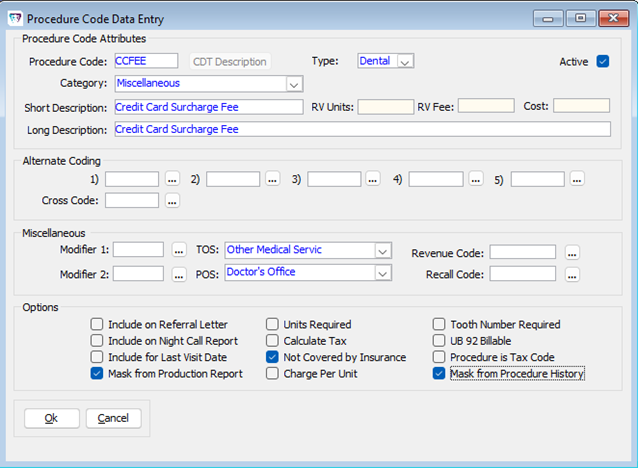
-
In the Procedure Code field, enter CCFEE.
-
From the Category dropdown list, select Miscellaneous.
Note: If Miscellaneous category does not exist, you can add it from Tables > Procedures > Categories. -
For Short Description, enter Credit Card Surcharge Fee.
Note: This text will display in the Patient Ledgers. -
For Long Description, enter Credit Card Surcharge Fee.
-
In Miscellaneous section:
- From the TOS dropdown list, select Other Medical Service.
- From the POS dropdown list, select Doctor’s Office. -
Under Options, check ONLY the following 3 boxes:
- Mask from Production Report
- Not Covered by Insurance
- Mask from Procedure History -
Click Ok to save your changes.