Applying a Surcharge
When this feature is enabled and implemented, Payment Manager automatically adds the Surcharge Percent to the Take Payment process:
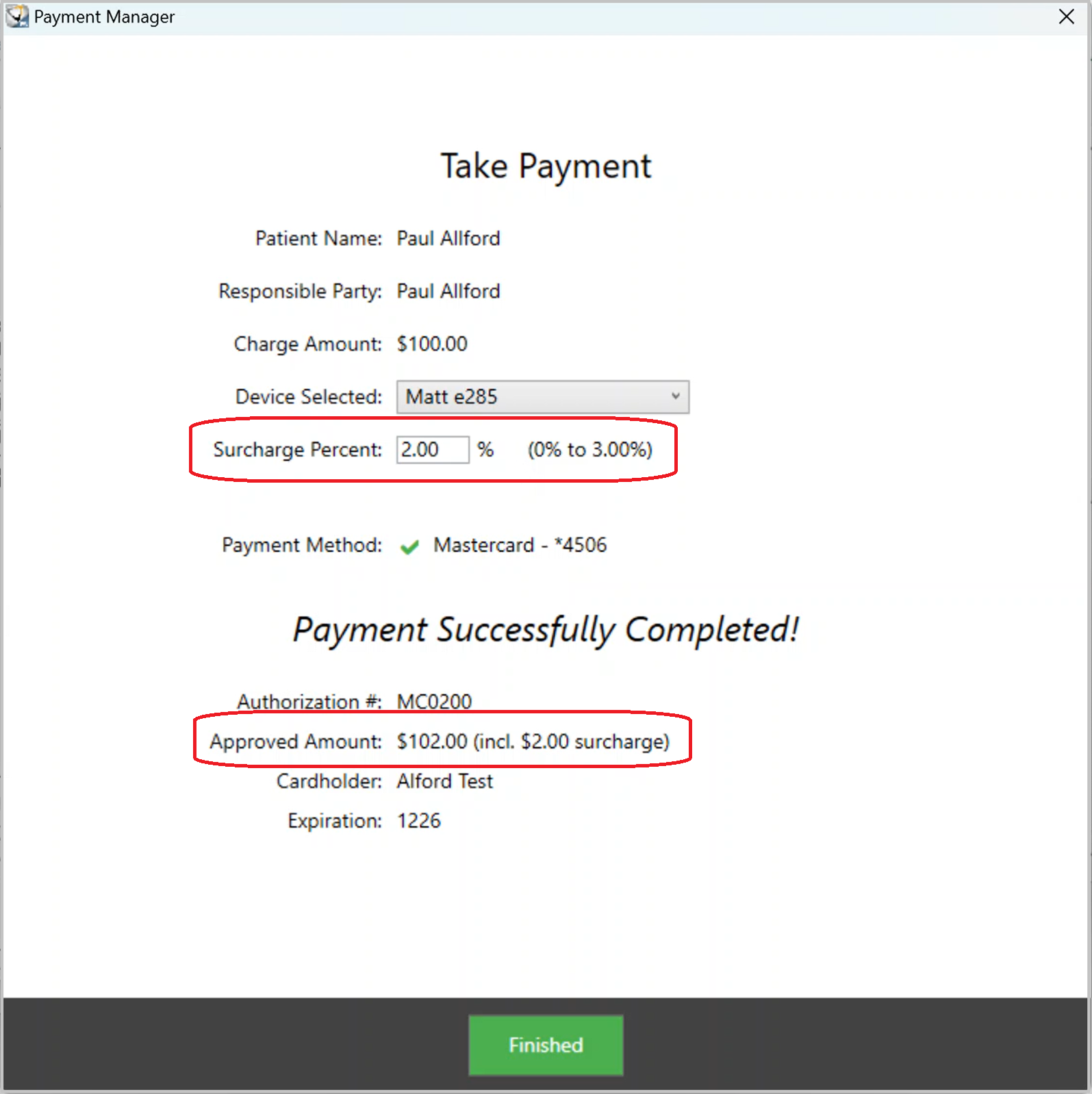
The Approved Amount of the payment includes the surcharge. Therefore, you must manually enter a charge for the surcharge to ensure the transaction does not result in a patient credit balance.
Adding a Surcharge to Patient Charges
When you have finished taking the payment, follow these steps:
-
When you are prompted to print a receipt, select Yes/OK. The PDF file of the receipt is displayed and ready to print.
-
DO NOT exit the receipt window. Minimize it instead. The Payment Manager portion of payment process is complete, and the WinOMS Payment/Adjustment Entry window is displayed.
-
Click Next. DO NOT APPLY PAYMENT TO ANY PROCEDURES.
-
Click Finish. The WinOMS Payment/Adjustment Entry window is closed.
-
From the Patient Window, click the Charges icon.

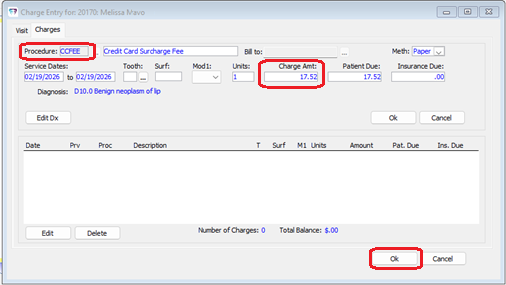
The Charge Entry window is displayed.
-
In the Procedure field, enter CCFEE.
Note: If this code has not yet been created, see Creating a Surcharge Procedure Code. -
Restore the minimized receipt window.
-
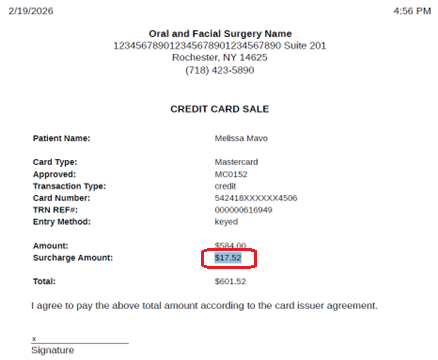
Highlight and copy the Surcharge Amount from the receipt.
-
Paste the amount into the Charge Amt: field of the Charge Entry window, and then click Ok. You are prompted to confirm the post.
-
Click Ok. The Exit Options window is displayed.
-
Select Payment Wizard, and then click Ok. The Open Payments window is displayed, listing the credit card payment that was just accepted.
-
Select the payment and click Select. The Payment/Adjustment Entry window is displayed, populated with the previously entered information.
Note: There is no "using Payment Manager" text at the bottom of the window, as the payment has already been posted. This portion of the procedure is for completing the distribution process. -
Click Next. The Payment/Adjustment Entry window is displayed again. Credit Card Surcharge is now listed among the procedures.
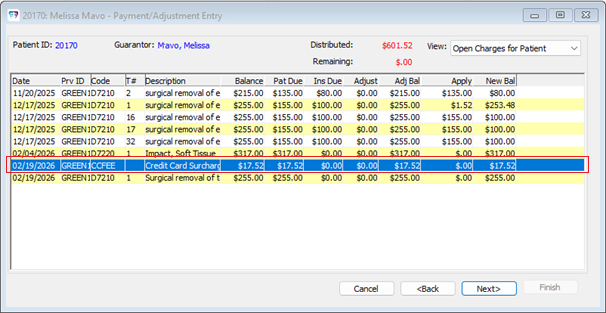
The patient's payment can be applied to the surcharge and other procedures as needed.
IMPORTANT: When issuing a refund for a surcharged credit card transaction, you must follow the rules specified by the credit card networks. For more information, see Refunding a Surcharged Credit Card Payment.