Setting Up Medical Conditions and Referring Doctors
Adding Medical Conditions
To add medical conditions for your practice:
-
Log in to SoftDent with your credentials.
-
Select System > Customize Medical History. The Medical Conditions window is displayed.
-
Press Tab on the keyboard to access all features in the window.
-
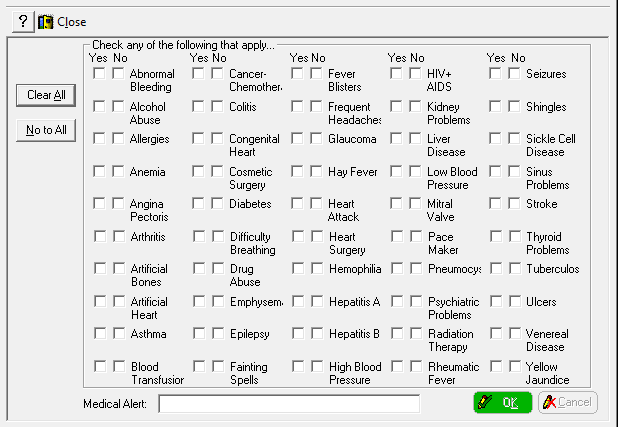
Click Sample in the Express Bar. A condensed view of the medical conditions is displayed, enabling you to compare the list in SoftDent to your current medical history.
-
When you have reviewed the medical conditions, close the sample window.
-
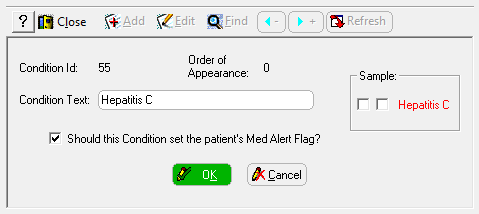
To add additional medical conditions, click Add. The Add Medical Condition window is displayed.
-
You can have 50 medical conditions in the medical history. Do not list allergies as medical conditions; they are tracked in another section of the medical history.
-
In the Condition Text field, type the condition.
-
To set the condition as a medical alert, select the Should this Condition set the patient’s Med Alert Flag? option.
-
Click OK.
-
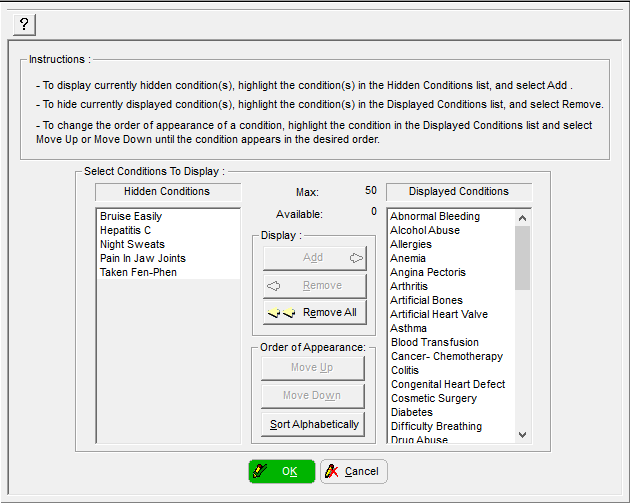
After you add all medical conditions, click Change Order in the Express Bar. The Select Conditions To Display window is displayed.
-
To move a condition from the Hidden Conditions list to the Displayed Conditions list, select the condition and use the buttons in the middle of the window.
-
The software tracks the number of conditions. If the Available number is 0, you must remove displayed conditions before adding others from the Hidden Conditions list.
-
When conditions have been added and removed, you can change the order of the list. Click Sort Alphabetically to arrange the list in alphabetical order.
-
Click OK.
-
Click Close.