Adding Employees
To add employees for your practice:
-
Log in to SoftDent with your credentials.
-
You must have administrative rights to access employee information.
-
Select System > Change System Settings > System Security > Rights by User. The User Information/User Rights window is displayed.
-
Press Tab on the keyboard to access the buttons at the top of the window.
-
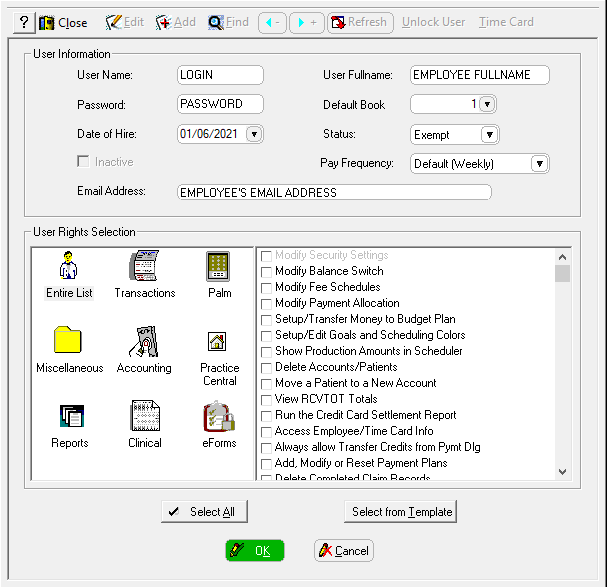
Click Add. The Add Employee window is displayed.
-
Enter information in the following fields:
-
User Name
-
Password
-
User Fullname
-
If the employee is non-exempt and will clock in and out, enter information in the Status field and the Pay Frequency field.
-
To select the security rights for the employee, click Select from Template and select the job title from the list.
-
Scroll through the user rights list and verify that the correct rights are selected.
-
Click OK.