From the Hard Tissue Chart
To create a new treatment plan from the patient's chart:
-
On the Patient tab, select Clinical > Hard Tissue Chart.
-
Under Mode, select Planning. Unmanaged Procedures is displayed by default.

-
Click + to create a new plan. The Create New Treatment Plan window is displayed.
-
Enter a unique name for the new plan and click OK. The new plan becomes the Current Plan.
-
Begin charting by selecting tooth, surface, or region.
-
Select the type of procedure and the procedure code from the list.
Note: To add additional procedures, click Add Code in the Tools section.
-
Continue adding procedures to the plan. Each proposed procedure is added as a note in the Clinical Notes section of the left panel and saved automatically with the plan.
To edit a plan from the patient's chart:
-
On the Patient tab, select Clinical > Hard Tissue Chart.
-
Under Mode, select Planning.
-
Select the plan from the Current Plan drop-down list.
Note: Procedures that have been proposed, but not added to a plan, are found under Unmanaged Procedures.
-
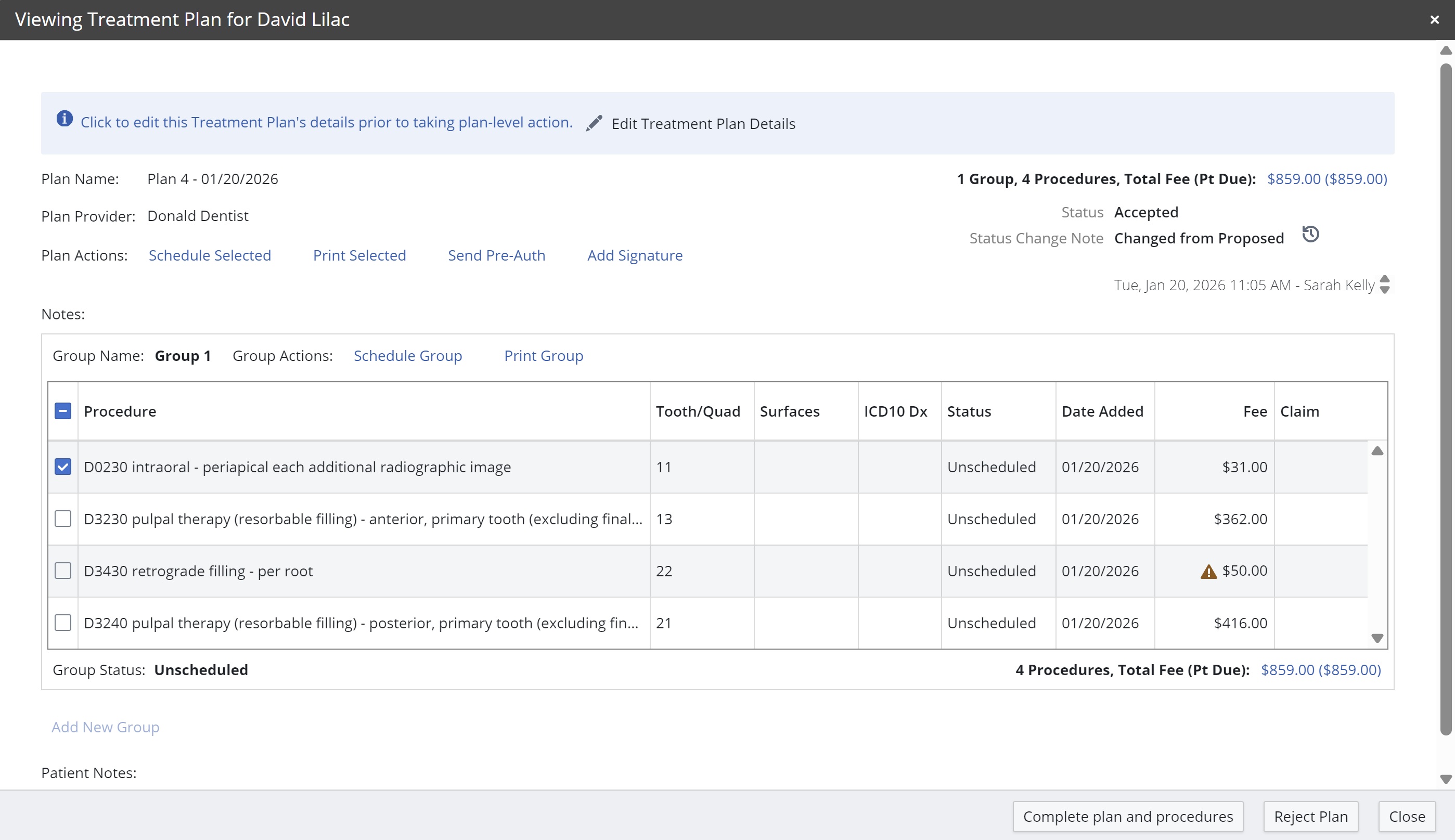
Click the Pencil icon to edit the selected plan. The Viewing Treatment Plan window is displayed.
-
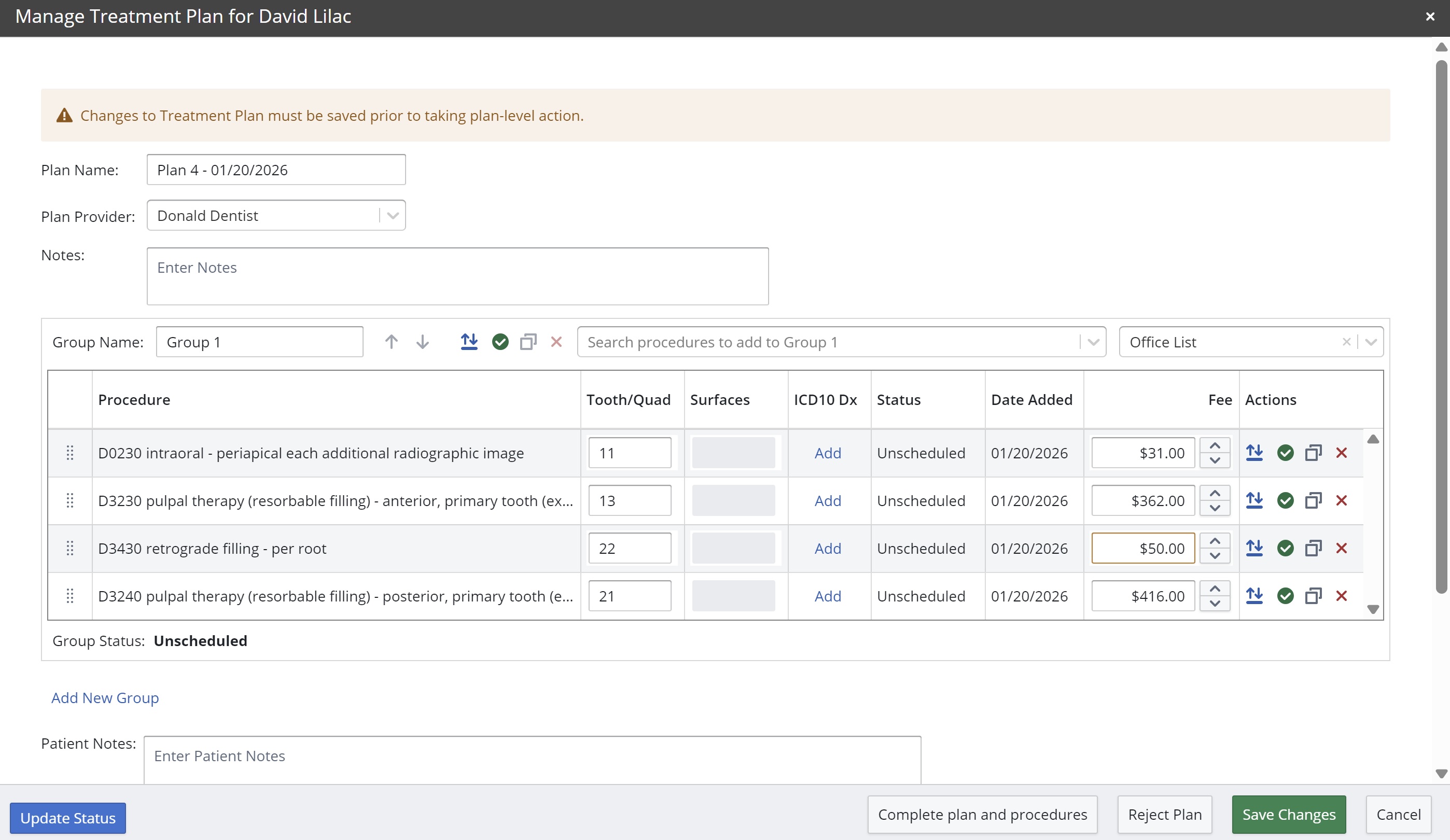
Click the Pencil icon. The Manage Treatment Plan window is displayed.
-
From here, you can rename the plan; select or change the plan provider; assign procedures to a group; add a new group and procedures; or re-order, edit, add, or delete procedures from the plan.
Note: You can use the Copy  icon to add another instance of a procedure to the list.
-
Use the Patient Notes field to enter messages about the plan you want to convey to the patient when the treatment plan is printed.
-
Click Save Changes.
From the Treatment Plans Window
Working with Unmanaged Procedures