Using CS
Intraoral Cameras
Capturing and Viewing Still Photos
After disinfecting the camera, inserting it into a protective
sheath, and preparing the patient for the examination:
Depress the Power
button for three seconds to turn on the camera.
Open the CS Imaging software.
Click the Acquire
a new intraoral camera image  button
or press F5.
button
or press F5.
Open the patient’s mouth, and place
the camera in the patient’s mouth over the area you want to view.
Live video appears on the Preview
screen.
Press the Shutter
Release/Capture button on the camera, OR
click the Capture  button on the Acquisition interface. The Review window of the Acquisition
interface shows the captured image.
button on the Acquisition interface. The Review window of the Acquisition
interface shows the captured image.
Click the Tooth
Chart  button to access the Tooth Chart window.
Select the tooth, and write your
comments in the Comments field.
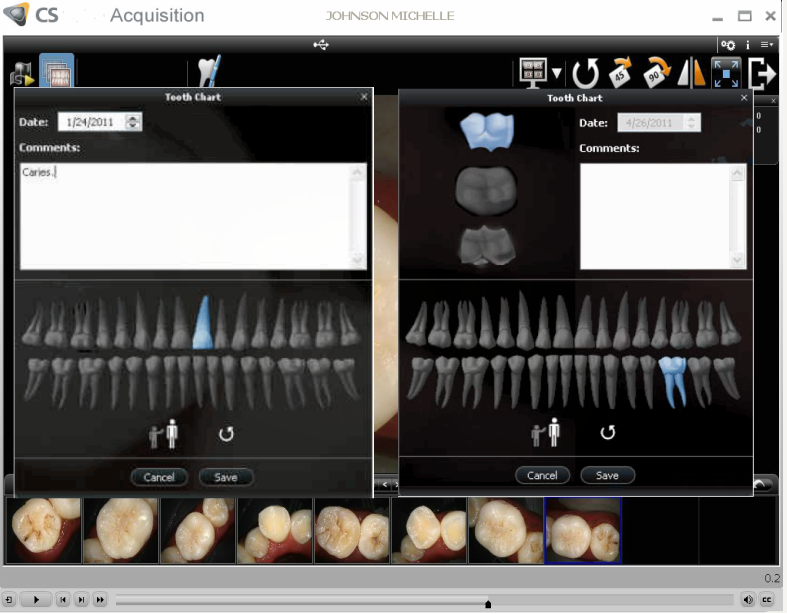
Use the Image
Processing dialogue box to manage the contrast and brightness
of the image.
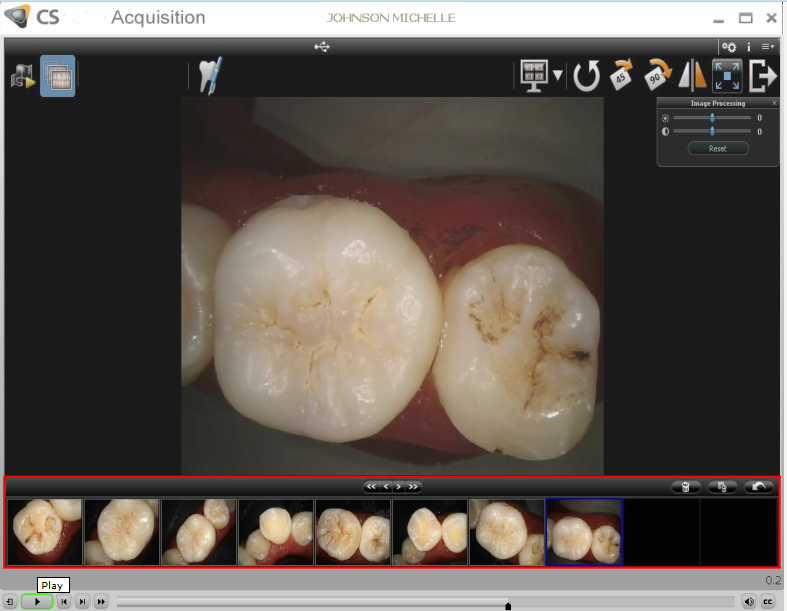 U
U
Use the Image
Gallery toolbar to navigate, delete, or restore the image.
Click the Done  button to close the
 interface and return to the imaging software.
Remove and dispose of the sheath.
Review the image.
When inserted into the camera holder,
the camera goes into sleep mode. It also goes into sleep mode if it
is left idle for 90 seconds. To use it again, press the Capture
button. When the camera is idle for more than an hour, it powers off.
Related Topics
Disinfecting and
Maintaining the Camera
Applying the Protective
Sheath
Understanding
the Acquisition Interface
Recording and Viewing Video