In the patient chart, click the
Financial Functions  button. The Financial
Functions—Charges and Payments window is displayed.
button. The Financial
Functions—Charges and Payments window is displayed.
To set up a contract with insurance or multiple responsible parties:
In the patient chart, click the
Financial Functions button. The Financial
Functions—Charges and Payments window is displayed.
Click the Contracts
and Payment Plans  button.
The Financial Functions—Contracts
and Payment Plans window is displayed.
button.
The Financial Functions—Contracts
and Payment Plans window is displayed.
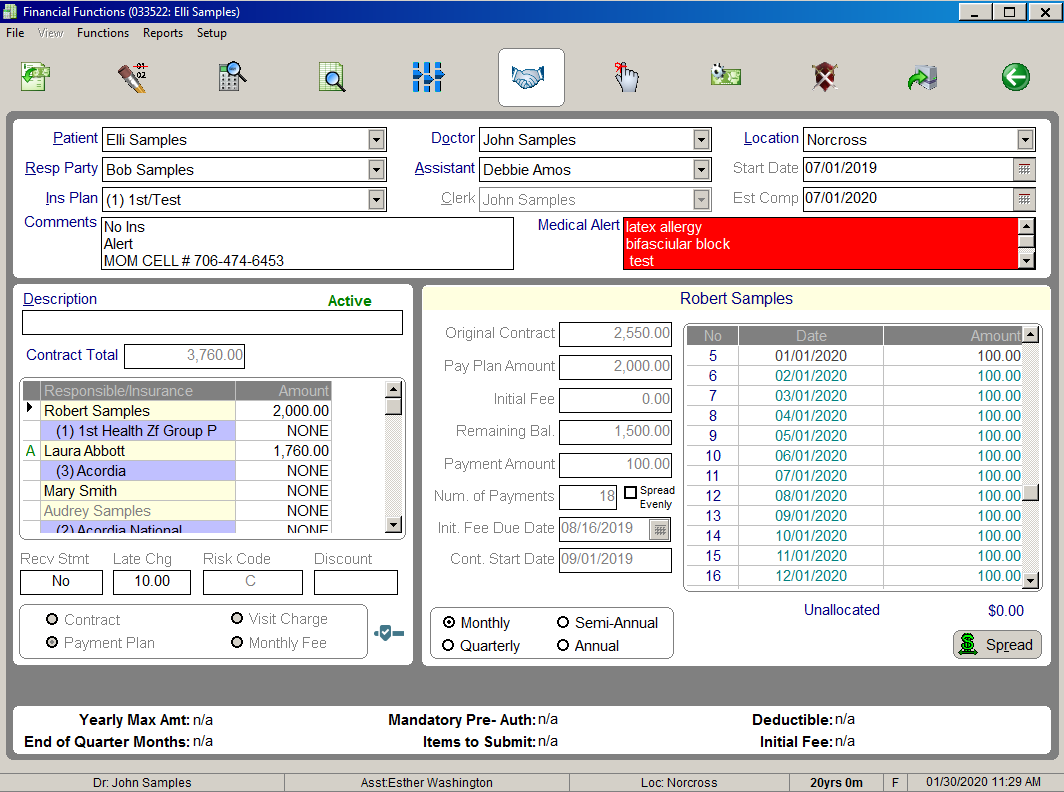
In the Description field, select a contract description from the drop-down menu or add a new description. Press Tab.
In the Contract Total field, type the full contract amount before discounts, which includes the responsible party portion and insurance carrier portion, if applicable. Press Tab.
In the Amount section, type the portion of the contract the first responsible party is paying. Press Tab.
If there are additional responsible parties/insurance carriers that the contract should be divided between, type the amount each is paying until the total contract amount is disbursed.
If a particular responsible party should not be included in the contract disbursement, type 0 and press Enter to skip the responsible party and to continue disbursing money to the next responsible party. Press Tab.
Select whether this is a Contract or Payment Plan. Press Tab.
In the Initial Fee field, type the amount of the contract that is due on the initial fee due date. Press Tab.
Pending contracts are activated by changing the initial fee date, posting a procedure that has been designated to activate a contract, or by the roll program.
In the Payment Amount field, type the payment amount to be paid monthly, quarterly, semi-annually, or annually. Press Tab.
The software calculates the payment amount if you leave this field blank and enter the total number of payments in the Num. of Payments field.
In the Num. of Payments field, type the number of payments. Press Tab.
In the Init. Fee Due Date field, type the date the initial fee is due. Press Tab.
You cannot enter a past date as an initial fee due date.
The initial fee due date determines when a contract becomes active. If you use the current date, the contract is activated, and the initial fee amount is applied to the current balance when you post the contract. If you use a date in the future, the status of the contract is Pending.
In the Cont. Start Date field, type the date that the first contract charge should be applied. In a single-due-date system, the date defaults to the roll date for the next month. In a multi-due-date system, the date defaults to one month from the initial fee due date.
To use the default payment term of Monthly, press Tab. The Spread button is selected. Press Tab. The Next button is selected.
OR
To use a different payment term for the contract, select a new payment term. Press Tab. The Next button is selected.
Click Next or press Tab to continue setting up the contract for the next responsible party/insurance carrier.
Continue completing contract information for all responsible parties/insurance carriers on the list. If a responsible party is listed but does not require a contract, tab through the contract fields until the software displays a message acknowledging that the responsible party being skipped does not have a financial contract.
After completing the payment information
for the last responsible party/insurance carrier in the Responsible/Insurance
section, the Post Transactions
button is selected. Click the Post
Transactions  button or press
Tab. If you have not entered a banding date, the Contract
message is displayed.
button or press
Tab. If you have not entered a banding date, the Contract
message is displayed.
To enter a banding date, click the calendar next to the Start Date field and select a date.
To enter an estimated completion date, click the calendar next to the Est Comp field and select a date.
If you make a mistake while entering contract information, click Restart and enter the information again.