In the patient chart, click the
Financial Functions  button. The Financial
Functions—Charges and Payments window is displayed.
button. The Financial
Functions—Charges and Payments window is displayed.
Click the Auto
Payments  button. The Financial
Functions—Auto Payments window is displayed.
button. The Financial
Functions—Auto Payments window is displayed.
The automatic payments feature enables you to enter credit card drafts, electronic bank drafts, or post-dated cheques to be posted at regular intervals in the future. After you set up the auto payment information in the patients’ financial charts, the software can automatically post these payments to their financial ledgers on a daily basis.
Important: Before you can work with auto payments, you must convert your balances.
To set up automatic payments:
In the patient chart, click the
Financial Functions button. The Financial
Functions—Charges and Payments window is displayed.
Click the Auto
Payments button. The Financial
Functions—Auto Payments window is displayed.
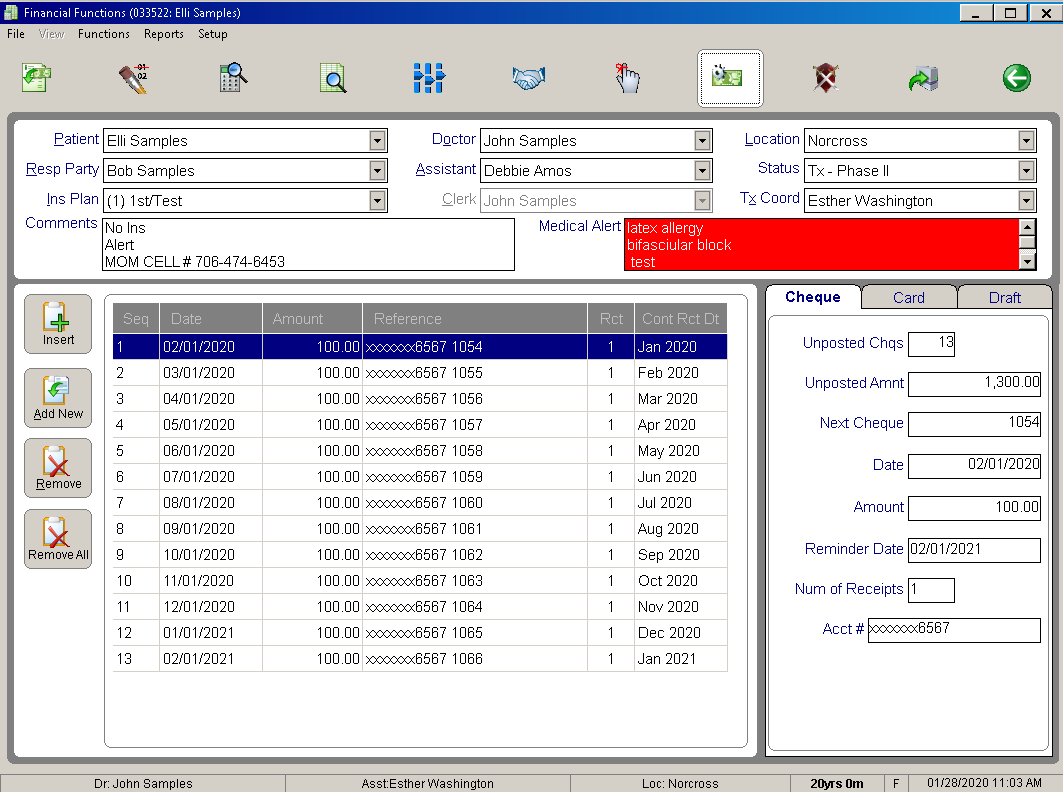
Click a tab to select the type of automatic payment you want. Type additional information in the blank fields.
The following fields require explanation:
On the Cheque tab, complete the following fields:
On the Credit Card tab, complete the following fields:
On the Draft tab, complete the following fields:
Important: The bank account number is not a required field. Be sure to consider security and confidentiality issues when entering this data.
After completing the fields on the
tab, click the Post Transactions
 button.
If the amount that is automatically calculated exceeds the total balance, a message is displayed, asking if you want to do this. Click Yes, but then edit the last payment to match the contract payment spread.
For security, only the last four digits of credit card numbers are displayed on auto payment reports.