To add an attachment to a patient’s record:
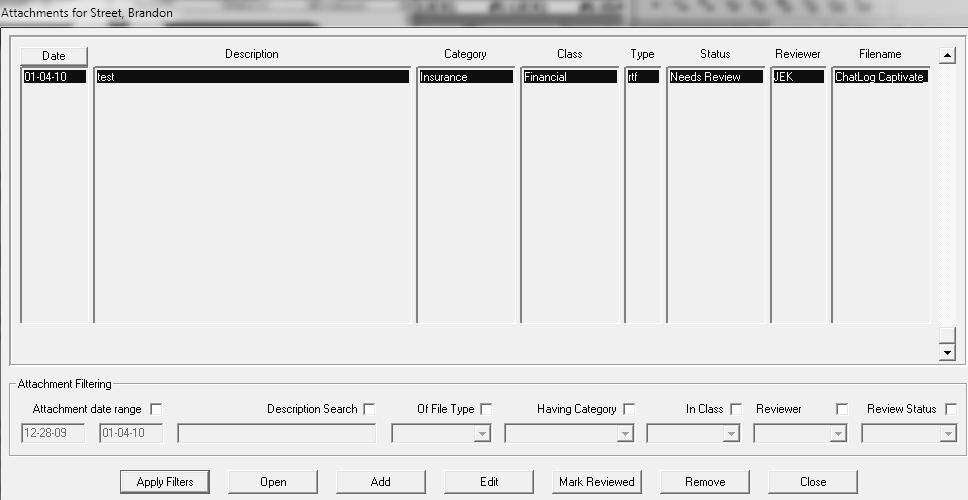
In the patient's clipboard, click Attachments. The Attachments window is displayed with a list of files attached to the patient's record.
Click Add. The Attachment Definition window is displayed with the patient's and reviewer’s names.
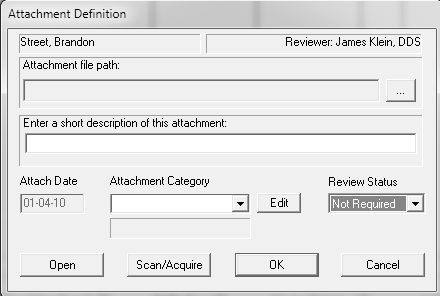
In the Attachment file path: field, click the ellipsis button and navigate to the file you want to attach.
Click Open. The file path is entered in the window.
Enter a description of the attachment.
Use the list to select a category. One of the following classes is displayed based on the category: Financial, Clinical, or Demographic.
Set the Review Status field to Needs Review, Reviewed, or Not Required.
Tip: Attachments that need a review are added to Office Expert, and you can configure Practice Central to display the items.