 button. The Checklist window for
daily tasks is displayed.
button. The Checklist window for
daily tasks is displayed.Use the checklist function to view and maintain a list of administrative tasks. You can perform many of the items in the Checklist window automatically, including the following:
Aged Receivable Reports Bulk Insurance Payments
Collections System Coupon Books
Database Searches Daysheet
Word Processing Letters Ledger Scan Reports
Miscellaneous Reports Patient Labels - New Patients
Patient Tracking Reports Referral Reports
Roll Schedule Reports
Statements Timeclock
Insurance Claim Processing
Treatment Card History Schedule Maintenance - Add Days
After performing a task, mark the task as completed, and the software records your name, the date, and time you completed the task.
You can also add your own tasks to the list to suit the specific needs of your office and staff.
To access the checklist function from the main menu, click the Checklist
button. The Checklist window for
daily tasks is displayed.
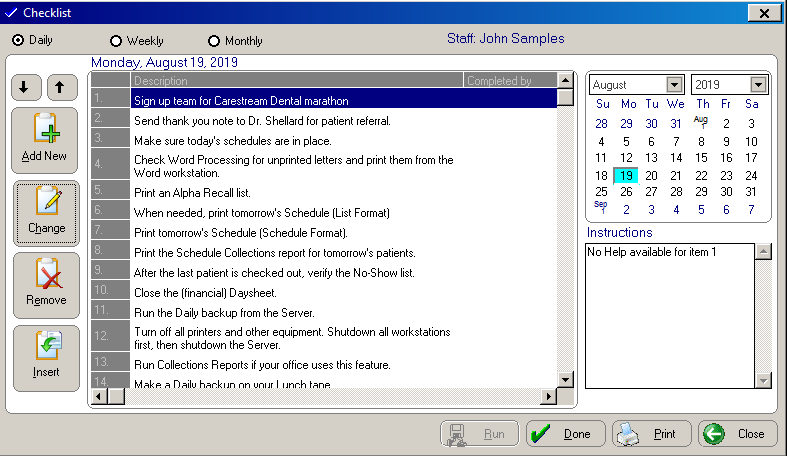
The window displays the current day and date, a description of tasks to be completed, a calendar, instructions on how to complete the tasks, and function buttons.
To view additional tasks in the list, use the vertical scroll bar in the center of the window. To view the names of the staff members who completed the tasks and the dates the tasks were completed, use the horizontal scroll bar at the bottom.
To view the checklist for a different day, click the day on the calendar.
To view the weekly or monthly checklist, select the corresponding option at the top of the window.
When you select a task, instructions on how to complete that task are displayed in the Instructions section of the Checklist window. For items that are set to run OrthoTrac functions, the message **Click RUN to perform this task.** is displayed.