Swissmeda Cloud Imaging Solution
Using the Swissmeda Cloud Imaging Solution
You must be logged in to CS Imaging (mandatory)
Note: If not logged in, the following occurs:
- fails to transfer DICOM data (manual / automatic),
- fails to perform Query / Retrieve.
Note: A warning message will be displayed when an automatic transfer configuration has been
detected.
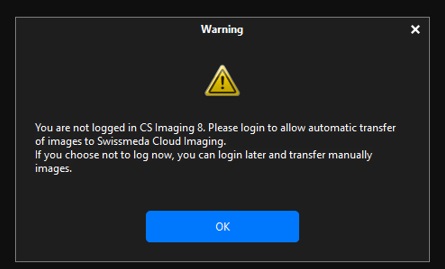
A manual DICOM transfer will not be allowed until you are logged in to CS Imaging.
Right clicking on a image to perform a manual DICOM transfer opens a login page.
Configuring Automatic Transfer on the CS Imaging Server
This allows to configure the solution to send to the Cloud storage the newly acquired images specified.
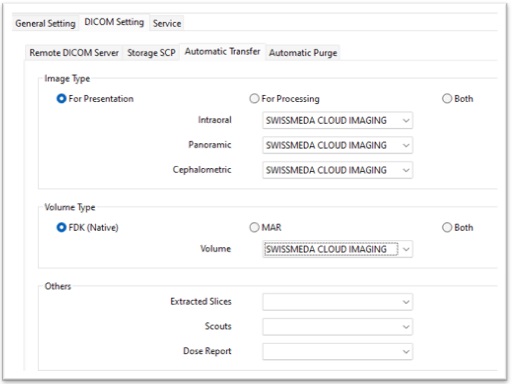
Using Automatic Transfer on Imaging Acquisition Workstation
Reminder: You must be logged in.
|
|
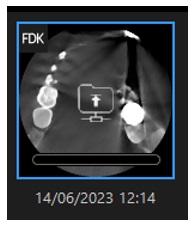
Once the acquisition is completed, the automatic |
|
|
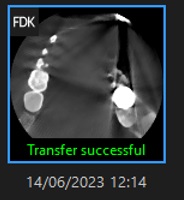
Then the “Transfer successful” message will be |
Using the Web Viewer
1. Use the URL https://swissmedacloudimaging.swissmeda.com to access the web page.
2. Log in using your Carestream Dental Account and password.
The home page displays the list of exams / studies. You can search by patient name, study ID, date,
description accession number or modality type.
3. Select a patient exam from the list and click to view the details.
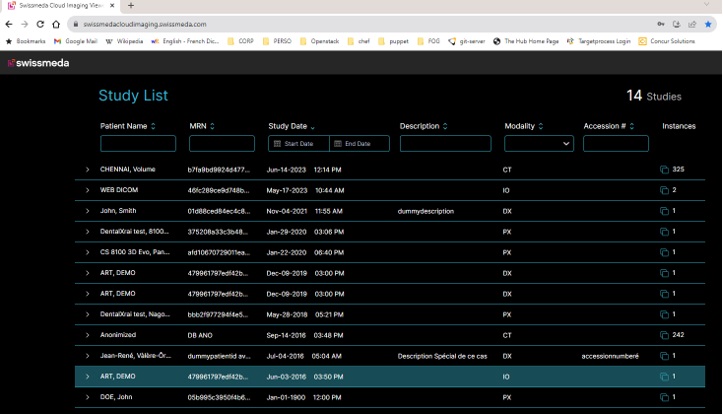
4. Click on the “Viewer” button to start the review.

The review screen has 3 main areas: Measurement, Image Gallery & Image Review
A toolbar is available on top of the review screen.
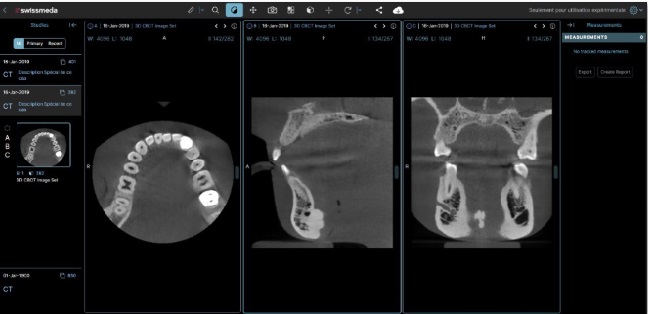
The user can locally download a selected exam.
Click on the  in the tool bar and locally download the selected study in a compressed file.
The user can share a selected exam with a referral.
1. Click on the  and send to a specific destination.
2. A dialog window will open where you can fill in the details and any comments or message for the recipient and click Share.
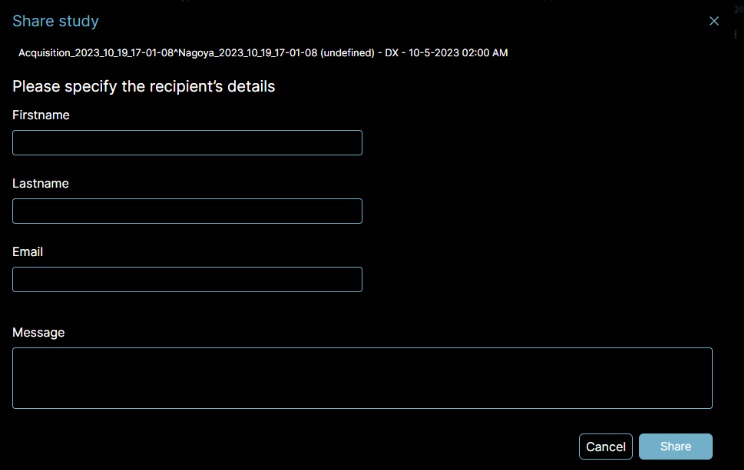
The referral will receive an email with the message and a link to view the image in the Web viewer.