Swissmeda Cloud Imaging Solution
This is available in the US only and requires a subscription plan.
Swissmeda Cloud Imaging is a cloud solution to store, share images across practice organization,
share images with referral (outside practice organization, and review 2D/3D images via Swissmeda
Cloud imaging web viewer).
Installing Prerequisites and Conditions for Usage
1. Install the latest CSI Suite version that is compatible with Swissmeda Cloud Imaging.
2. Activate the CSI Server License Key with DICOM capabilities.
All users must be granted access to their Cloud storage in order to be able to use CS imaging and the
Web viewer. A user admin must be designated at setup-time, and this user will be able to invite
additional users from a User Portal page: https://swissmedacloudimaging.swissmeda.com/portal
CSI Server Configuration
1. Open the Device Monitor in your icon tray in the lower right-hand corner of your tool bar and
select the Monitor icon, then choose Configure.
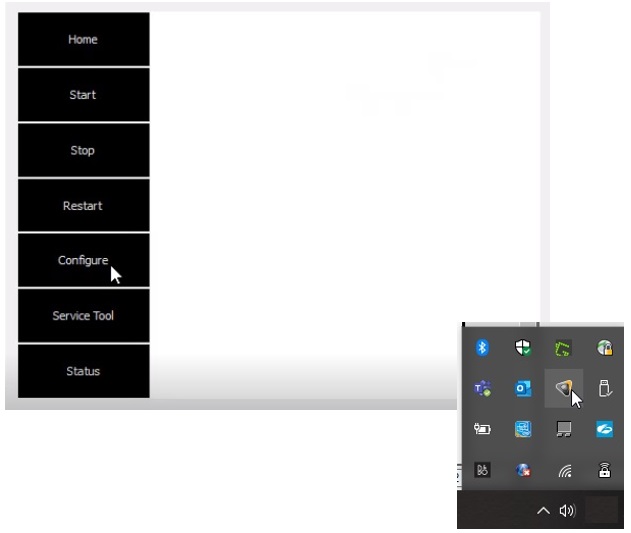
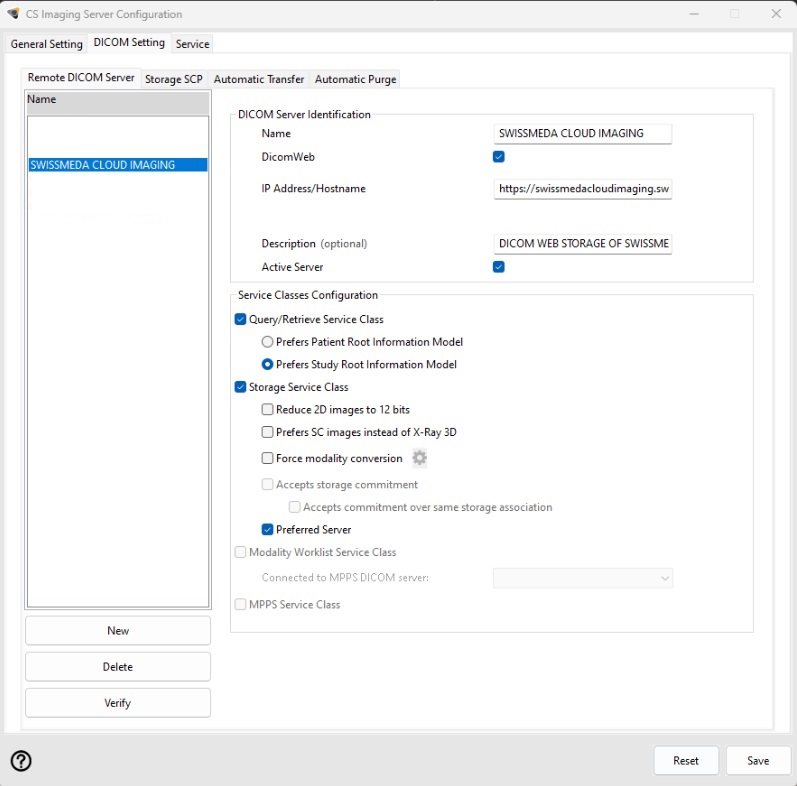
Note: The remote DICOM server is added by default throughout CSI8 Suite installation process.
"Active server" means DICOM destination is visible in CS imaging server list.
"Preferred server" means DICOM destination is selected by default in DICOM manual transfer panel.