View Screens in the Curve Tab
The Curve tool contains the following view screens:
-
2D MPR view screens:
-
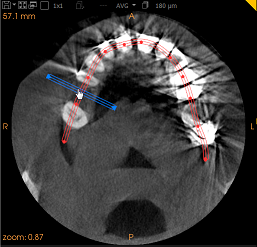
 Axial Slice View Screen, displays the horizontal plane as it is moved vertically through the image.
 -
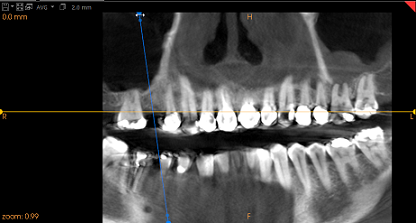
 Trace View Screen, or Reconstructed Panoramic View Screen, displays dynamically the dental arch as it is drawn in the Axial Slice View Screen.
 -
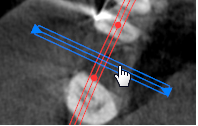
 Oblique Coronal View Screen, appears when you start drawing a trace on the Axial Slice View Screen, and displays a 90° view through the trace drawn on the Axial Slice View Screen.
-
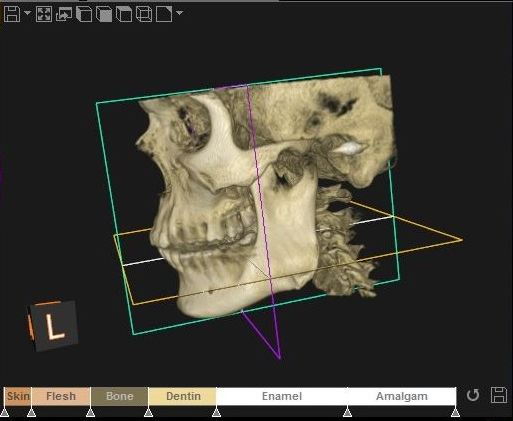
3D View Screen, a rotatable, three-dimensional view of the 3D volume.
|
|
Note: You can set the default position of the 3D View Screen in the “Template Preferences”. |

|
|
View Screens |
Description |
|
A |
Axial Slice View Screen
|
This view screen displays horizontal slices. It is displayed by default even when there are no traces present. Before drawing a trace, use the slider at the base of the Axial Slice View Screen to move the axial slice plane. The imaging software will display in real time the corresponding Trace View Screen and Oblique Coronal View Screen. You can use this view screen to trace the jaw arch or temporal bone, depending on which software mode you have installed.
|
|
B |
Trace View Screen
|
Also known as Reconstructed Panoramic View Screen, this view screen displays the jaw arch or temporal bone, depending on which software mode you have installed.
This screen appears when you start drawing a trace on the Axial Slice View Screen.
Once a trace is present, you can use the slice plane handle |
|
C |
Oblique Coronal View Screen
|
This view screen is displayed dynamically when you start drawing a trace on the Axial Slice View Screen, displaying a 90° view through the trace drawn on the Axial Slice View Screen. You can fine-adjust the position of the axial slice plane displayed in the Axial Slice View Screen, by using the blue handle in the |
|
D |
3D View Screen |
This screen shows the 3D representation of a volume. |
 to adjust the position of the axial slice plane.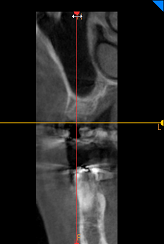

|
|
Note: You can configure the color of view indicator tags shown in the workspace tabs in the “Color Preferences”. The colors in the images in the user guide may differ from those shown on your computer monitor. |